ShackSlides Documentation
Module Parameters
ShackSlides can be configured in many different ways. Most of the details are self-explanitory, but here they are in full detail.
- Images Source - You can select where the images come from, a folder, Joomla content items, K2 items, or FlexiContent items
- Number of items - Limits the numbers of slides
- Folder - Select the folder, if the Images Source is set to Folder
- Joomla Category - Select the Joomla Category to use to pull items from, if the Images Source is set to Joomla Category
- K2 Category - Select the K2 Category to use to pull items from, if the Images Source is set to K2 Category, requires K2 to be installed
- FlexiContent Category - Select the FlexiContent Category to use to pull items from, if the Images Source is set to FlexiContent Category, requires FlexiContent to be installed
- Slides Order - Change the order of the slides, does not work for Folder
- Order Direction - Sort the slides, does not work for Folder
- Display Featured Items - You can include, exclude, or use only the featured or frontpage items
- Javascript Framework - If you are using a different Javascript framework (or have disabled them) other than the default Mootools, select the option here that fits your environment
Advanced Parameters
- Container Width - Set the value in pixels to the width of the slider based on the size of your images
- Container Height - Set the value in pixels to the height of the slider based on the size of your images
- Container ID - If you have multiple sliders on the same page, give them each a unique ID here
- Autoplay - Select if you want it to autoplay, and if so how many seconds per slide
- Autoplay Rollover Pause - Select if you want the autoplay to pause on mouseover
- Effects - Select the effect(s) to use for the transitions
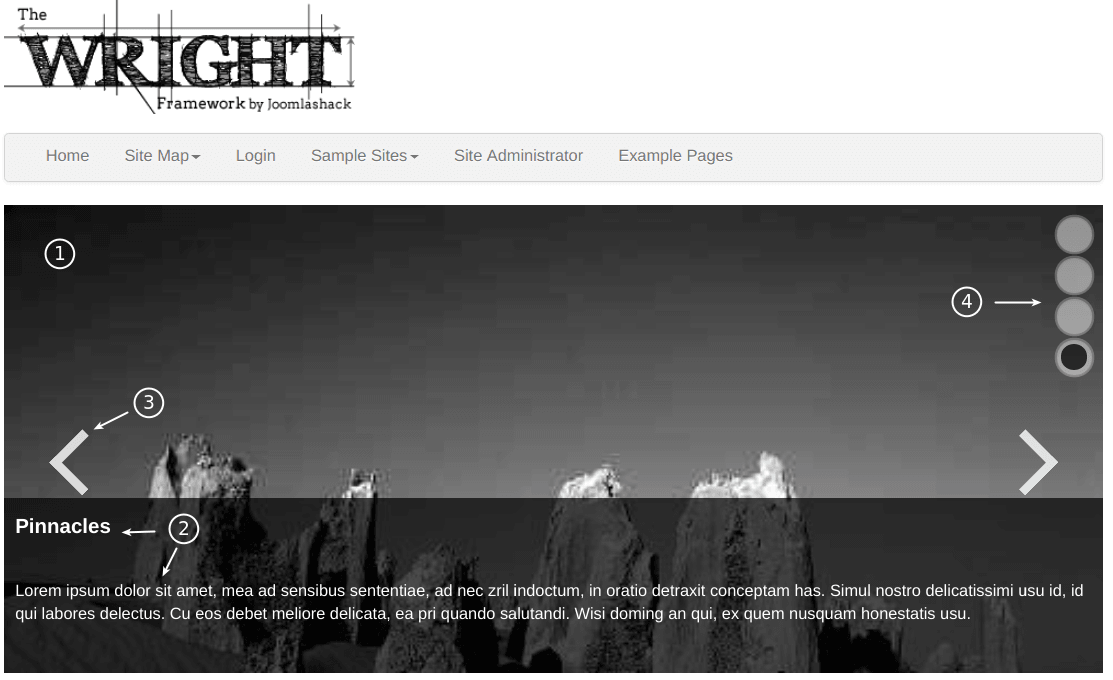
- Display Description - Item descriptions can be toggled on or off
- Description Opacity - This changes the level of visibility, values have to be between 1 and 0 (0.5 would be half)
- Description Height - This sets the height of the description box (used when Position is top or bottom)
- Description Width - This sets the width of the description box (used when Position is right or left)
- Description Position - Moves the description box to top, bottom, right or left
- Description Background - Set the background color for the description box
- Display Buttons - Display the Previous/Next buttons, this does not affect the buttons in the navigation bar
- Buttons Opacity - This changes the level of visibility, values have to be between 1 and 0 (0.5 would be half)
- Previous Button Label - The label for the Previous button (you can leave it blank and use css to add an image)
- Next Button Label - The label for the Next button (you can leave it blank and use css to add an image)
- Show Navigation - Display the navigation bar, that has the slides enummerated
- Show Navigation Buttons - Display the prev/next buttons in the navigation
- Use Numbers in Navigation - Use numbers or rely on css styles for the slideshow navigation
- Mousewheel Navigation - Allows the user to change slides with the mousewheel
Using a Folder as Source
If you have a folder inside of your images directory that contains all of your slideshow images, then you can just select it in the module settings. You can also specify links and titles for those images, if you add a file called images.xml to that same directory.
If you look at modules/mod_shackslides/tmpl/demo, you will find an example of how to setup the XML file. Only images listed in the images.xml file will be used to display the slideshow, so you can also use it to filter out images you don't want in the slideshow.
Below is the syntax for the images.xml file. Each slide gets a <slide> with at least the <image> tag inside like you see below. The <title> and <link> tags are optional.
<?xml version="1.0" encoding="UTF-8"?>
<slides>
<slide>
<image>imagename.jpg</image>
<title>Title Goes Here</title>
<link>http://www.example.com</link>
</slide>
</slides>
Using Joomla, K2, or FlexiContent items as Source
When using any of these as the source, what happens is ShackSlides tries to find the first image in your content item. It will extract the location of that image and use it for the slideshow. It also detects if there is a link around it, and should link the slide. Please note that K2 and FlexiContent are only available for Joomla 1.5, and when they are compatible with Joomla 1.6 they will be supported in ShackSlides for 1.6.
You can specify if a description should be pulled from the content as well, which will extract part of the text in the content item as the title display. Caution, formatting may cause unwanted display, so best advice is to just use regular paragraphs.