Translate Content
Joomla Search
Pro Templates
Don't pay a fortune for a professional Joomla template.
- Eye catching designs...look professional
- XHTML valid...better by design
- CSS Driven...faster and lightweight
- SEO ready...get traffic
Free Templates
Browse the biggest choice of free Joomla templates around!
- Quality design
- Free customization forum
- Continuously updated
- Same Joomlashack quality
Blog Categories
The Joomla 1.5 Book

Get the have-to-have book about Joomla 1.5 from Amazon.com. and get free access to the companion site, joomlabook.com.
We Recommend
Start sending personalized email newsletters to your prospects and customers today. Learn more about IContact email list management software and start a 15 day free trial. |
| Fresh Install - Template Messed Up? |
| Written by TJ Baker | |
| Last Updated ( Thursday, 25 September 2008 07:13 ) | |
|
One of the most asked questions we get in our support ticket system, as well as the forum, is why a particular template is 'messed up, broken, not right, etc etc' upon first installation.
Default Template installed
New installation of Joomla 1.5 - Default Template ![]() So you've installed Joomla successfully, and now you want to us a profession template. First you need to install your template. For help with installing that template, see the tutorial 'How do I install a Joomlashack Pro Template'
Joomlashack Template installed
![]() You've successfuly installed yoyur template and set it as the 'default', and gone to view your wonderful new template... and WHOA! It looks like something went terribly wrong! First Things First - know your available module positions!
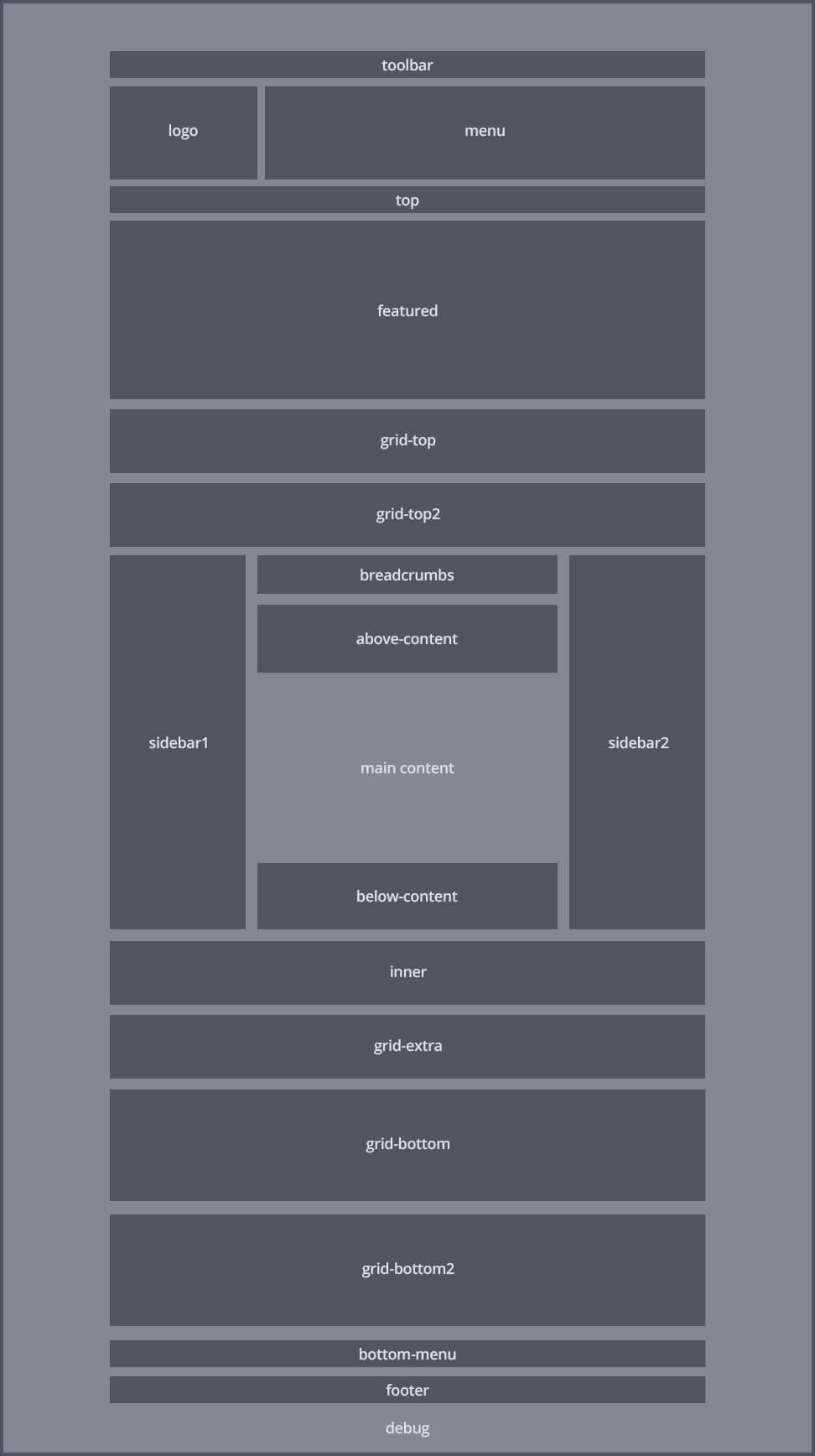
![]() Before you can put things where they belong (or where you want them), or move things from where they don't belong, you need to know what module positions are available with your particular template. Each template demo contains a 'Module Map'. The module map will outline your available module positions. This is the Module Map for Lightfast, to view the module map for your particular template, see the Demo.
What's all that content all over the place?
![]() Let's have a closer look at the top of the template where everything seems to be all messed up. Notice the module positions. Now, have a look at the next screenshot that shows the default template in use with the same default content.
So that's what that is!
![]() You'll notice in the default template, that content is published nicely to the 'Top' positon and the 'User3' postion. When you change the default template to the Lightfast template (in this example), that content is still going to get published to the 'Top' and 'User3' postions, only, now we don't want that (at least, if you don't want your site to look bad you don't want that).
For now, we're just going to get rid of that unwanted content from the top of the template.
Unpublish that content!
![]() As mentioned above, for now were simply going to unpublish that content so we don't have to look at it anymore. If you want, you can come back to it and put it in a more suitable place later. So to the task - go to your Module Manger and look for the highlighted items above (if you don't know how to get to your module manager, you may wish to Get a Book! .... you may also ask as many noob and not so noob questions as you want in our Community Forum) The items are 'Newsflash' and 'Top Menu' if you can't make them out from the pic. Click on the green arrow to unpublish the items, or open the items and unpublish them.
It's Magic!!!
![]() The content that was published in all the wrong places is now gone! Now to the task of setting up some menu / module formatting.
**The information from here on is very specific to setting up the Lightfast template, however, the concepts are the same for ANY template. See the demo for your particular template for specific suffixes and menu setup instructions! Know your available module styles.
![]() Just as you need to know what module positions are avaialbe if you want to put things where you want them - you also need to know the styles that are available for your particular template. And just as each demo contains a Module Map ... guess what?.... they also contain info on what styles are at your disposal!
The above image shows the 'Module Class Suffixes' and corresponding formatting for the Lightfast template (for your template's available suffixes, see the Demo). We're going to set our Main Menu to have the formatting of the 'light' suffix in this example.
Add the suffix.
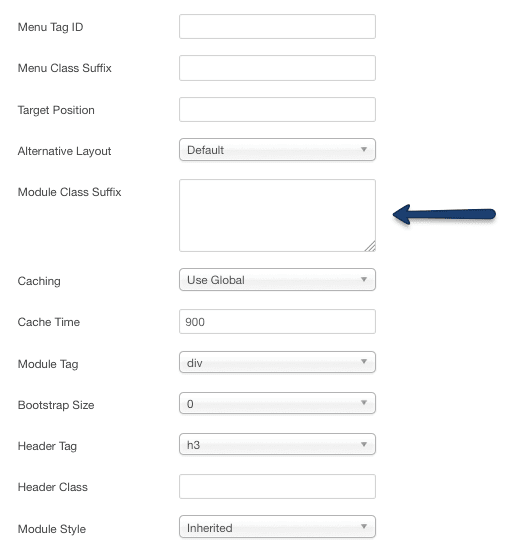
![]() Module Class Suffixes may be added to the module in the module's 'Advanced Parameters'. ..... see above. You'll probably have noticed when you first accessed that parameter area, the suffix field contained _menu -- just delete that pesky default suffix and replace it with the 'light' suffix (no quotations please) Not quite right... but closer....
![]() Now we have some formatting for the module background and title... but those menus still need some work. So, back to the module parameters to set the 'Menu Style' so it looks a little better.
Set the Menu Style
![]() Go back to your Main Menu module and look at the parameters again. This time it's the 'Menu Style' that we want to change. By default, it's set to 'List' - change that to 'Legacy - Vertical' and save your work.
To Recap
![]() Getting your menu modules to have some formatting is as simple as going to the module you wish to format and setting the parameters correctly. Depending on which color/formatting you wish to use, you will add the appropriate 'Module Class Suffix' (see available suffixes above, or in the template demo), and you will set the 'Menu Style' to 'Legacy - Vertical'. You can repeat these steps for all of the modules in the template. We only need to get a menu up top now, and we will be off and running with our shiny new template. Read on for how to accomplish this final setup step.
Publish the Top menu to the Top position!
![]() Remember those items we shut off beause they were in the wrong place. Well, one of them was the 'Top Menu' and we are now going to move it to it's new home. Go back to your Module Manager and open up that menu, set the postion to top, set 'Show Title' to No. Save your work and view your site.
Go forth you Joomla Pro!
![]() Your menus should be set up properly now, and you can replicate these steps for all of your other modules. Remember, if you need help, you can always post in our Community Forum in an appropriate thread for assistance. Thanks for using Joomlashack's template, and Have Fun! |