
Documentation for Joomla 6
In OSCampus Pro, a pathway is an ordered collection of related classes. You can use pathways to organise classes into learning programmes, topics, skill levels, or other routes through your training content.
A class can belong to more than one pathway. This gives you more flexibility than Joomla categories, where an item normally belongs to only one category.
Create a New Pathway
To create a pathway:
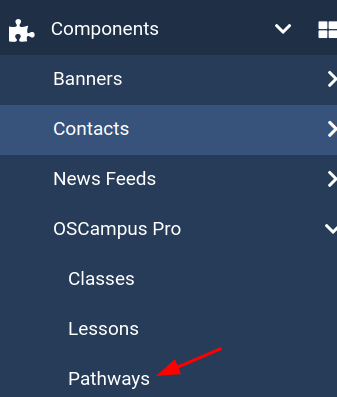
- In the Joomla administrator dashboard, go to Components > OSCampus Pro > Pathways.
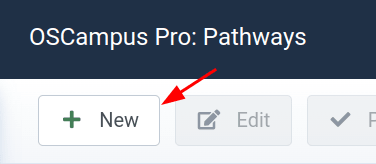
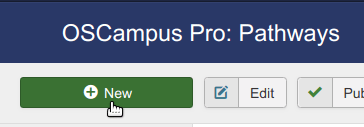
- You will see the OSCampus Pro: Pathways screen. Click New.
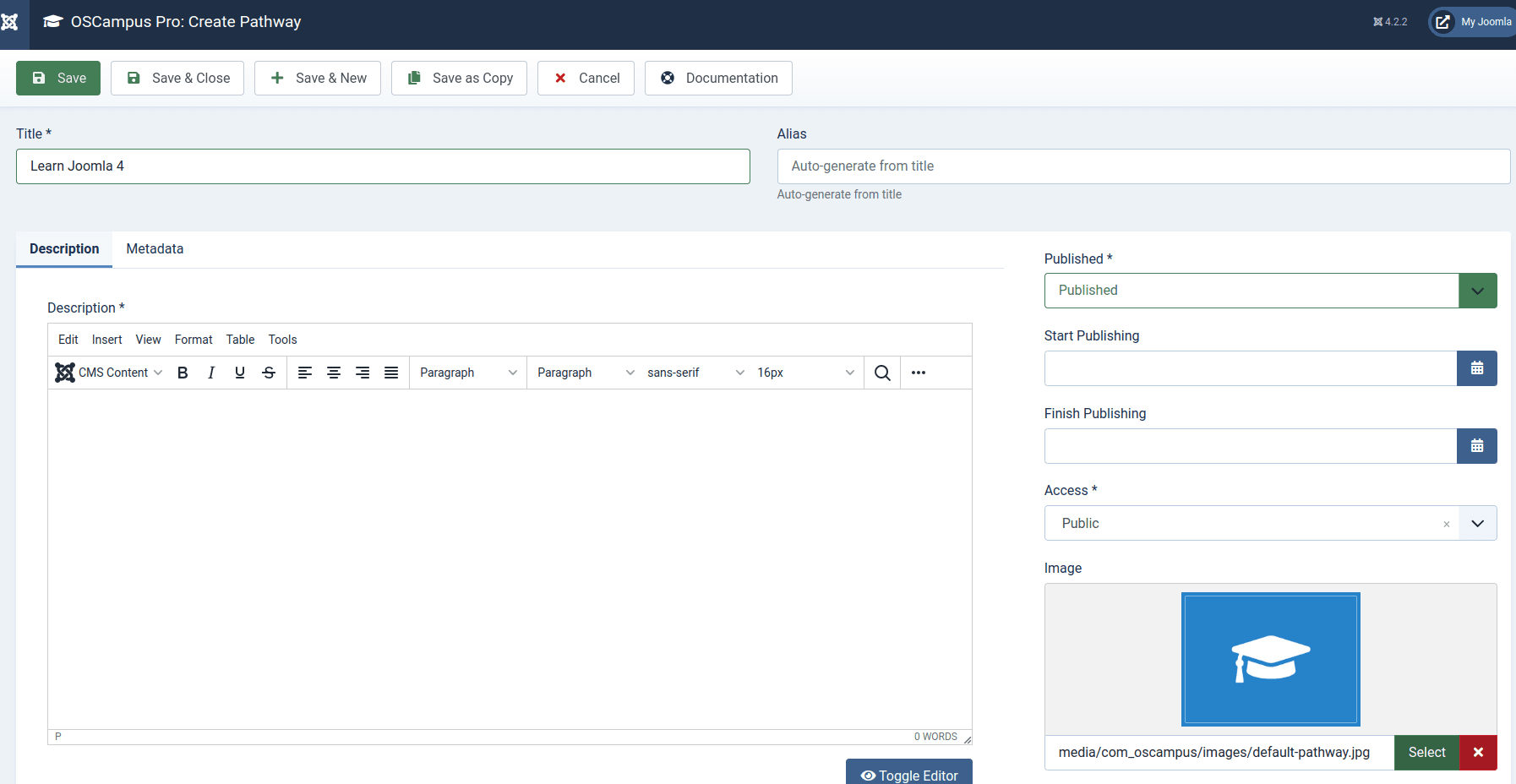
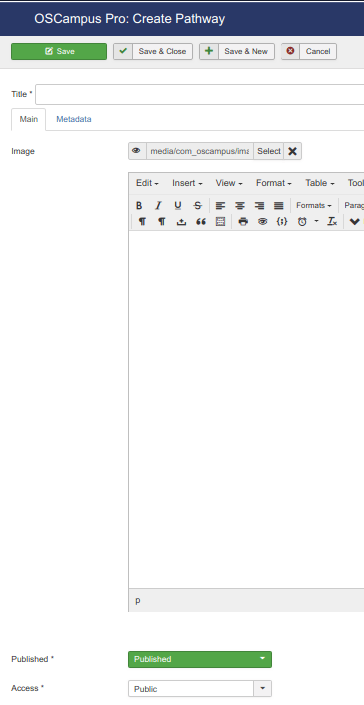
- You will see the OSCampus Pro: Create Pathway screen.
Enter the Pathway Details
Complete the following fields:
- Title: Enter a title for the pathway. This field is required.
- Alias: Enter an alias or leave this field blank. If you leave it blank, Joomla will create one from the title when you save the pathway.
- Description: Enter a description of the pathway. This field is required.
- Published: Select whether the pathway is published or unpublished.
- Start Publishing: Optionally select the date and time when the pathway should become available.
- Finish Publishing: Optionally select the date and time when the pathway should stop being available.
- Access: Select the Joomla access level whose users can view the pathway.
- Image: Optionally select an image for the pathway.
Add the Pathway Metadata
Click the Metadata tab to configure the following optional fields:
- Meta Title: Enter a title for search engines. Leave this blank to use the pathway title.
- Meta Description: Enter a description for search engines. Leave this blank to use the pathway description.
Click Save to save the pathway and continue editing it, or click Save & Close to return to the Pathways screen.
Assign Classes to the Pathway
Creating a pathway does not automatically add any classes to it. To assign classes:
- Go to Components > OSCampus Pro > Classes.
- Open the class that you want to add.
- Use the Pathways field to select one or more pathways.
- Click Save or Save & Close.
You can assign the same class to multiple pathways.
Arrange Classes Within a Pathway
OSCampus Pro allows classes to have a separate ordering within each pathway. On the Classes screen, filter the list by a pathway and use the ordering controls to arrange its classes.
Why Is My Pathway Empty or Missing?
If your pathway does not appear as expected, check the following:
- Make sure you have assigned at least one class to the pathway.
- Make sure the pathway and its classes are published.
- Check their access levels and publishing dates.
- Create an OSCampus pathway menu item if visitors do not yet have a page from which to view it.
- To arrange the classes, open the Classes screen and first filter the list by the pathway.
Documentation for Joomla 3
Learning pathway is described as the chosen route, taken by a learner through a range of (commonly) e-learningactivities, which allows them to build knowledge progressively. With learning pathways, the control of choice moves away from the tutor to the learner. "The sequence of intermediate steps from preconceptions to target model form what Scott (1991) and Niedderer and Goldberg (1995) have called a learning pathway. For any particular topic, such a pathway would provide both a theory of instruction and a guideline for teachers and curriculum developers" (Clement 2000).
Wikipedia, Learning pathway
A pathway in OSCampus is how you as an online training provider categorize a sequence of your online classes you offer via OSCampus. Think of an OSCampus pathway as a container for your online classes.
This feature allows classes to be assigned to more than one pathway, something that Joomla 3 categories can't do.
To create an OSCampus pathway:
- Go to Components > OSCampus Pro.
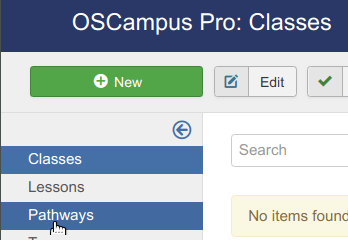
- You will be taken to the OSCampus Pro: Classes administrative page. In the left navbar, click Pathways:
- You will see the OSCampus Pro: Pathways screen. In the top left corner, click New:
- You will see the OSCampus Pro: Create Pathway page.
- Enter your OSCampus Pro pathway details:
- Title.
- Image (optional).
- Description
- Published status.
- Access.
- Metadata for SEO purposes (optional).
- Click Save or Save & Close.