
OSMap generates your XML sitemap dynamically. It does not create a physical sitemap.xml file in your site’s root directory.
Google Search Console supports dynamically generated sitemaps. It only requires a public URL that returns valid XML.
However, Search Console may sometimes display a Couldn’t fetch error. This means Google could not access or process the sitemap URL.
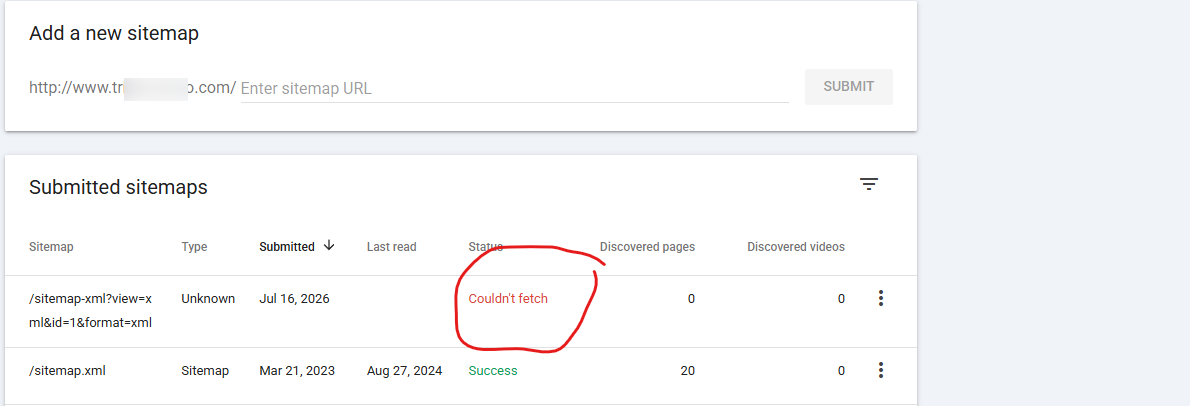
Here are a few tips on how to fix it.
Check That You Submitted the Correct URL
First, copy the XML sitemap URL directly from OSMap:
- Go to Components > OSMap.
- Find the sitemap you want to submit.
- Click its XML link.
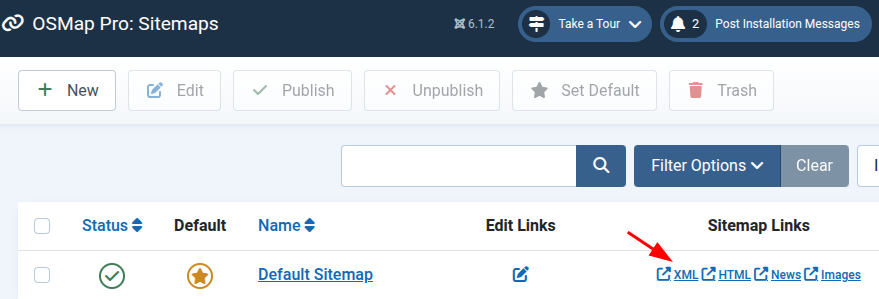
- Copy the complete URL from your browser’s address bar.
Submit this URL to Google Search Console.
Do not assume that the sitemap must be named sitemap.xml. Google accepts other URLs, including URLs generated dynamically by Joomla.
Open the Sitemap in a Private Browser Window
- Open a private or incognito browser window. Then paste the sitemap URL into it.
- The sitemap should open without asking you to log in. It should display an XML sitemap containing your site’s URLs.
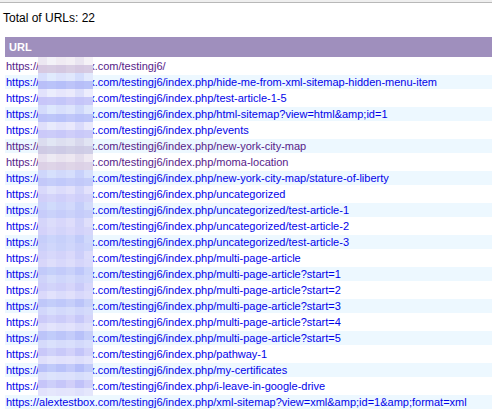
The absence of normal styling is not a problem. XML sitemaps often appear as plain text or as an XML document tree.
If you see a login page, access-denied message, blank page, or Joomla error, Google will probably be unable to process the sitemap.
Confirm That the Sitemap Returns a Successful Response
The sitemap URL should return the HTTP status code 200 OK.
The following responses can cause a Couldn’t fetch error:
403 Forbidden404 Not Found406 Not Acceptable429 Too Many Requests500 Internal Server Error503 Service Unavailable
Your hosting company can check the response code and the server logs for you.
Check Your Firewall and Security Services
A firewall may allow you to open the sitemap while blocking Googlebot.
This can happen with:
- Hosting firewalls
- Content delivery networks
- Web application firewalls
- Joomla security extensions
- Rate-limiting or bot-protection services
If you use services such as Cloudflare, Sucuri, RSFirewall, or a hosting firewall, check their logs. Look for requests to the sitemap URL that were blocked or challenged.
You may need to ask your hosting or firewall provider to confirm that Googlebot can access the URL.
Check for Redirect Problems
Make sure the sitemap URL uses the preferred version of your domain.
Check the following details:
https://instead ofhttps://- The correct
wwwor non-wwwversion - The correct Joomla subfolder, if Joomla is installed in one
- The final URL after any redirects
It is best to submit the final URL rather than a URL that redirects elsewhere.
The URL must also belong to the site property selected in Google Search Console.
Check the XML Sitemap for Errors
A sitemap may open in a browser but still contain invalid XML.
Look for:
- PHP warnings or error messages
- Joomla error messages
- Unexpected HTML before the XML content
- Invalid characters
- Incomplete XML
- Output added by another plugin or the template
A PHP warning printed before the XML can prevent Google from processing the sitemap.
If you see an error, temporarily enable Joomla’s error reporting and check the PHP error log. Remember to disable detailed error reporting on the live site after testing.
Test With Joomla SEF URLs Disabled
A Joomla routing or URL-rewriting problem may affect the friendly sitemap URL.
- Temporarily disable Search Engine Friendly URLs in Joomla’s Global Configuration.
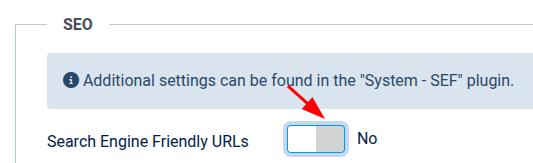
- Then open the XML link provided by OSMap again.
- If the non-SEF URL works, check your Joomla SEF settings and the server’s rewrite configuration.
- Restore your preferred SEF setting after completing the test.
Clear Your Site Caches
A cached error page can sometimes be served instead of the XML sitemap.
Clear all relevant caches, including:
- Joomla cache
- Page-cache plugins
- Optimization-extension cache
- Hosting cache
- CDN or firewall cache
Open the sitemap again in a private browser window after clearing them.
Check for Timeouts or Memory Errors
Large sitemaps may require more server resources.
If the sitemap takes a long time to load, Google may stop waiting for it. A PHP memory limit or execution-time limit may also interrupt its generation.
- Try opening the sitemap several times. If it is slow or unreliable, check your PHP and server error logs.
- You can also review OSMap’s memory settings and exclude content that does not need to appear in the sitemap.
Test the URL in Google Search Console
- Use Google Search Console’s URL Inspection tool to check whether Google can access the sitemap URL.
- The page fetch should be successful. If it is not, review the reported access or server error.
- You can then remove the failed sitemap submission and submit the correct URL again.
Allow Time for a Temporary Google Error to Clear
Sometimes the sitemap works correctly, but Search Console temporarily displays Couldn’t fetch.
If the URL:
- Opens publicly
- Returns
200 OK - Contains valid XML
- Is not blocked by a firewall
Wait a few hours and check Search Console again. You can then resubmit the sitemap if necessary.
Information to Send to Support
If the problem continues, send us the following information:
- The exact XML sitemap URL submitted to Google
- A screenshot of the Search Console error
- The sitemap’s HTTP response code
- Any PHP or server errors generated when opening the sitemap
- The names of any firewall, security, caching, or optimization services in use
- Whether the sitemap opens in a private browser window
- Whether the non-SEF sitemap URL works
This information will help us distinguish an OSMap issue from a firewall, server, routing, or temporary Google Search Console problem.