
Documentation for Joomla 5
OSTimer allows you to display the timer end date and time with a time zone.
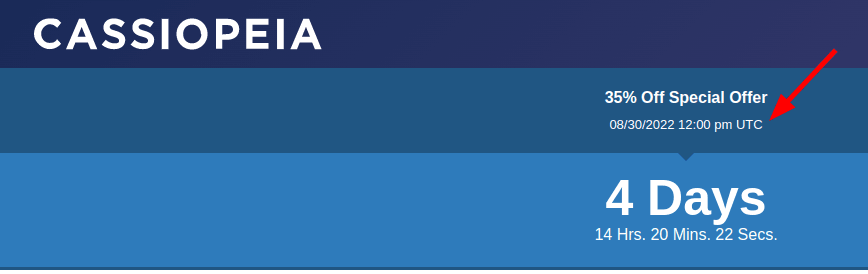
If you choose to display it, you have a few options.
Option #1: Display Your Time Zone in UTC
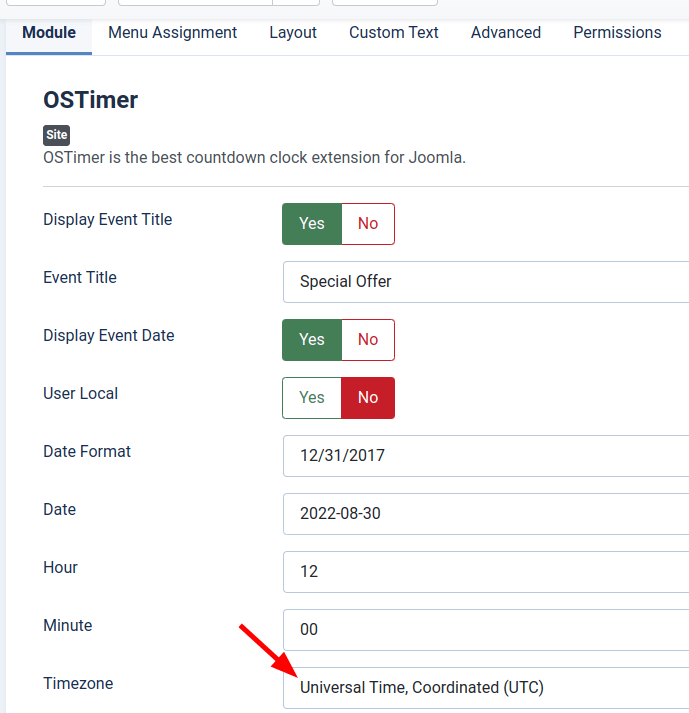
- Open up your OSTimer module for editing
- Under the Module tab locate the Timezone parameter
- Set it to Universal Time, Coordinated (UTC):
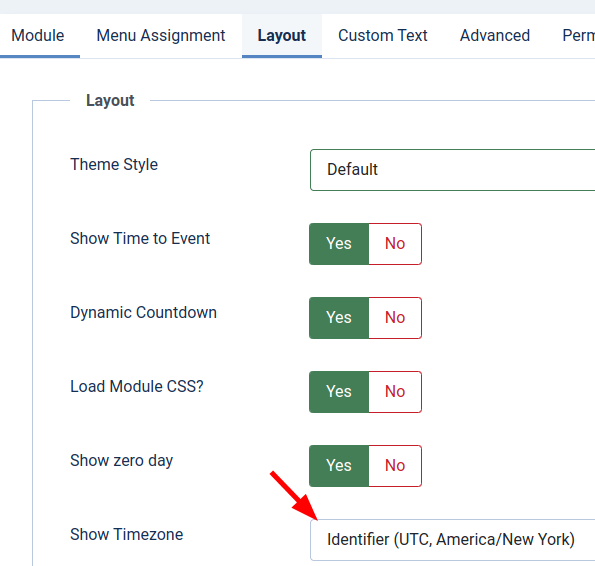
- Go to the Layout tab.
- Locate the Show Timezone setting
- Select either Identifier (UTC, America/New York) or Abbreviation (EDT):
- Click Save or Save & Close
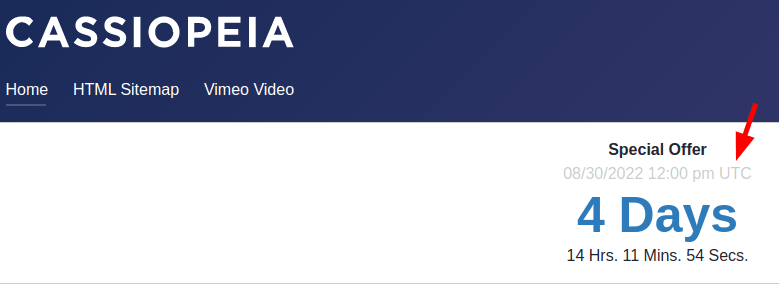
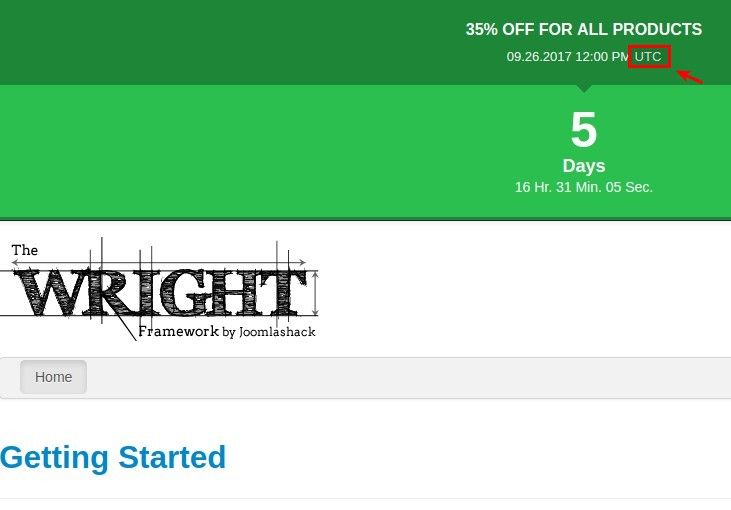
- Check your OSTimer module front end:
Option #2: Display Your Time Zone as Offset of Greenwich Mean Time (GMT)
- Go to the Layout tab
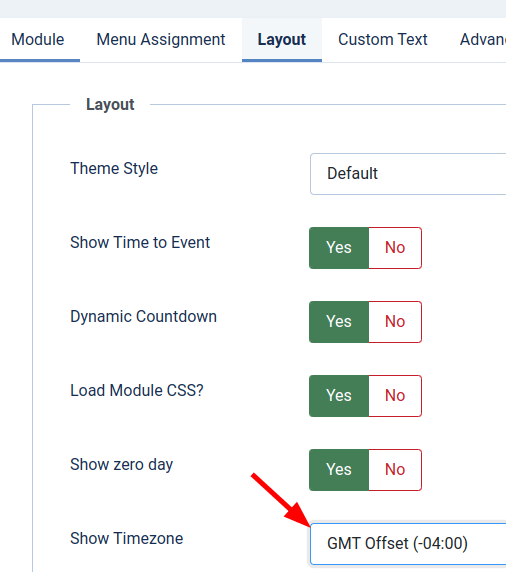
- Find the Show Timezone parameter
- Select the GMT Offset (-04:00)option:
- Click Save or Save & Close
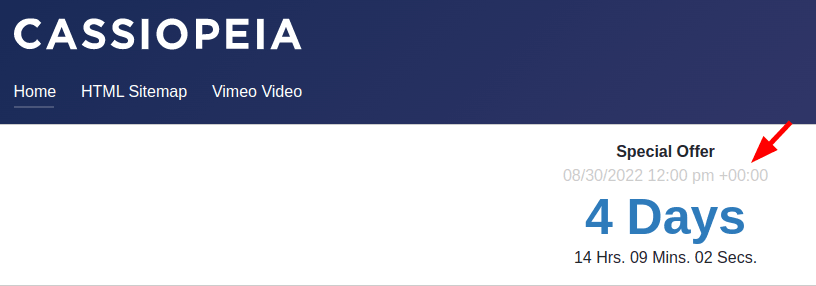
- Visit your website front end to see the GMT time zone displayed:
Option #3: Display a Timezone of Your Choice
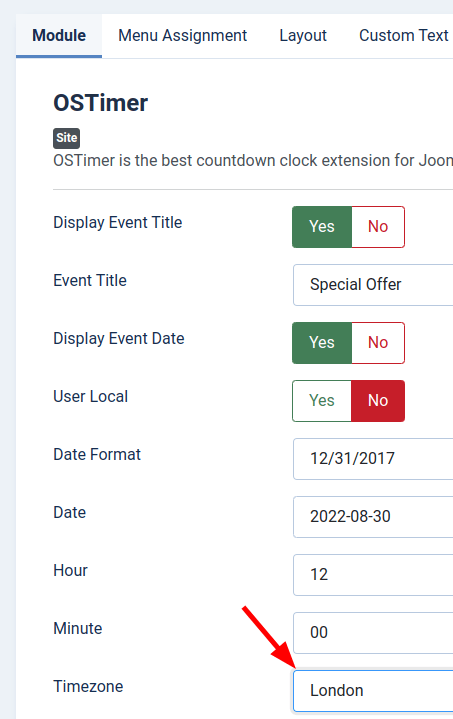
- Go to the Module tab
- In the Timezone setting select a time zone of your choice:
- Go to the Layout tab
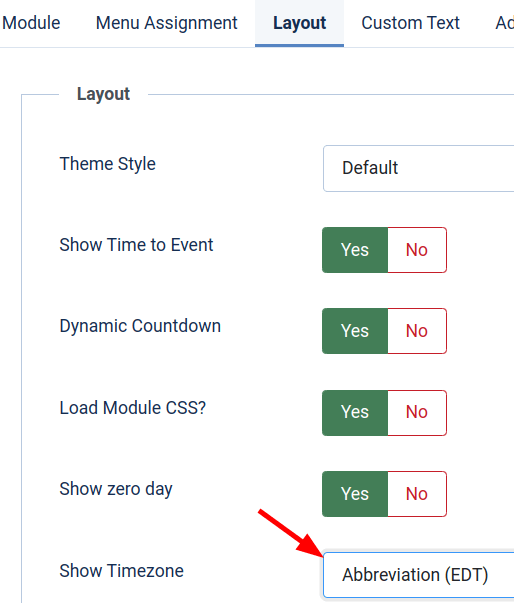
- Find the Show Timezone setting
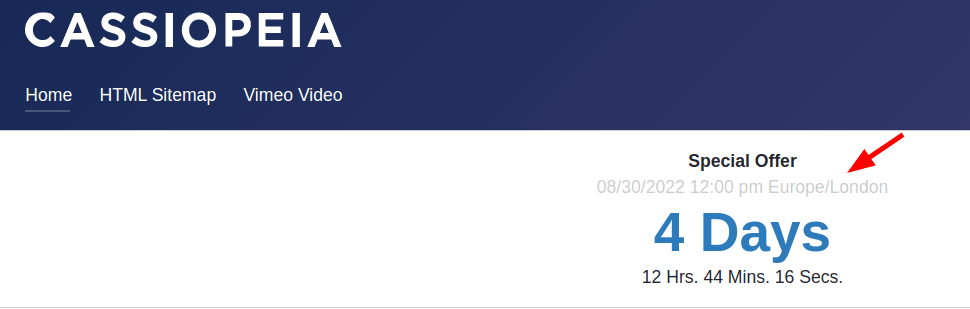
- Select the Identifier (UTC, America/New York) option. Your selected time zone will be displayed as full text:
- Alternatively, select the Abbreviation (EDT) option:
- Click Save or Save & Close
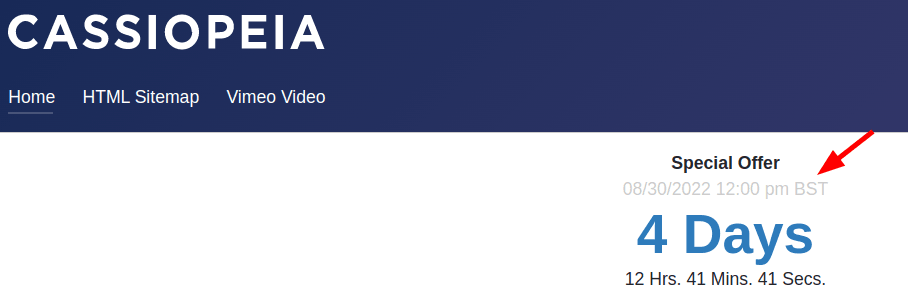
- Visit your website front end to see the selected time zone displayed as an abbreviation:
Documentation for Joomla 3
OSTimer allows you to display the timer end date and time with a time zone.

If you choose to display a time zone, you have a few options to select from.
Option #1: Display Your Time Zone in UTC
- Open up your OSTimer module for editing
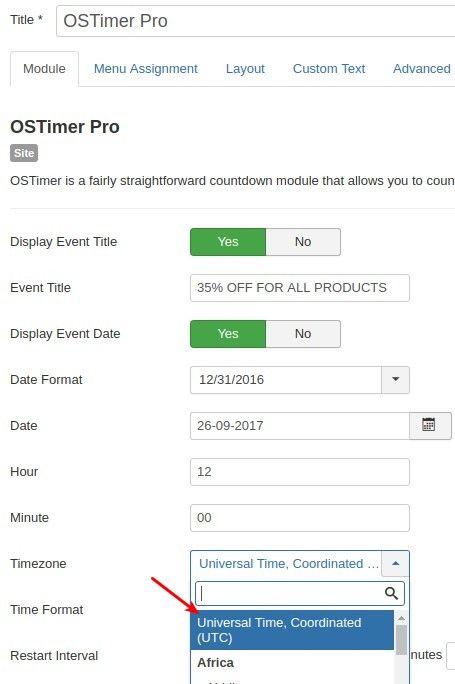
- Under the Module tab locate the Timezone parameter
- Set it to Universal Time, Coordinated (UTC):
- Go to the Layout tab
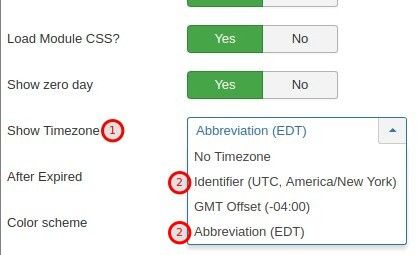
- Locate the Show Timezone setting
- Select either Identifier (UTC, America/New York) or Abbreviation (EDT):
- Click Save or Save & Close
- Check your OSTimer module front end:
Option #2: Display Your Time Zone as Offset of Greenwich Mean Time (GMT)
- Go to the Layout tab
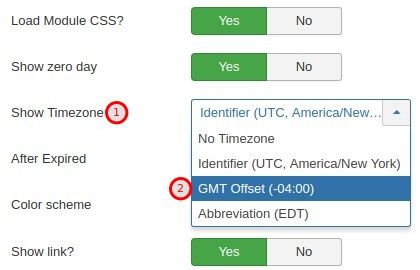
- Find the Show Timezone parameter
- Select the GMT Offset (-04:00) option:
- Click Save or Save & Close
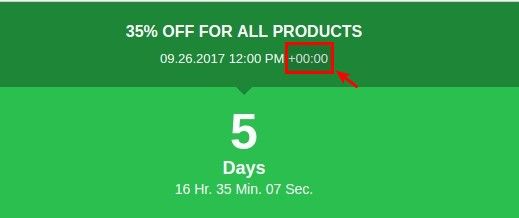
- Visit your website front end to see the GMT time zone displayed:
Option #3: Display Your Time Zone in Local Time of Your Choice
- Go to the Module tab
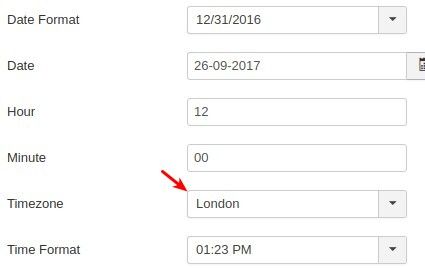
- In the Timezone setting select a local time zone of your choice:
- Go to the Layout tab
- Find the Show Timezone setting
- Select the Identifier (UTC, America/New York) option. Your time zone will be displayed as full text.
- Alternatively, select the Abbreviation (EDT) option. Your selected time zone will be displayed as an abbreviation:
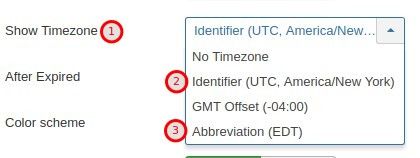
- Click Save or Save & Close
- Visit your website front end to see the local time zone displayed.