Documentation for Joomla 6
OSYouTube Pro includes additional player settings and support for YouTube Shorts videos.
YouTube Shorts Support
OSYouTube Pro supports standard YouTube videos as well as YouTube Shorts.
Simply paste the URL of a YouTube Short into your Joomla content. OSYouTube Pro will detect the URL and embed the video automatically.
A YouTube Shorts URL normally uses this format:
https://www.youtube.com/shorts/VIDEO_ID
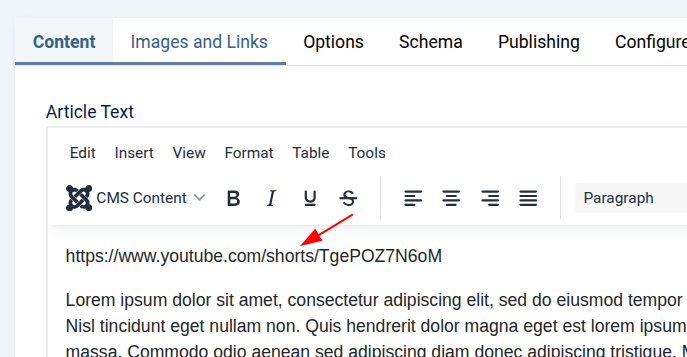
Once embedded, the Shorts video can use the OSYouTube Pro player settings described below.
How to Access the Pro Settings
The following settings are available only in OSYouTube Pro.
- Open the Joomla administrator dashboard.
- Go to System > Manage > Plugins.
- Open the Content - OSYouTube Pro plugin.
- Configure the available Pro settings.
OSYouTube Pro Settings
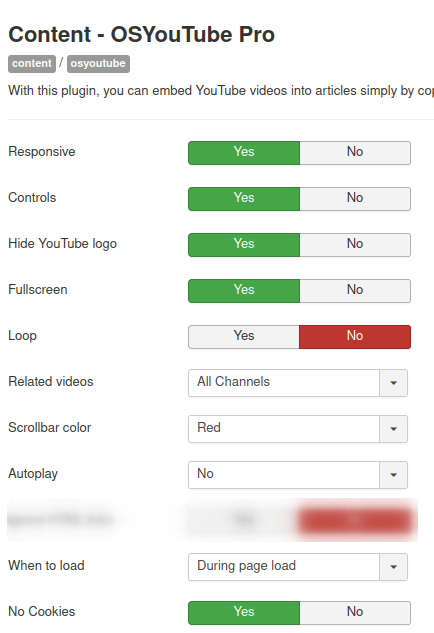
- Responsive. Enable responsive resizing for embedded videos.
- Controls. Show the YouTube player controls.
- Hide YouTube logo. Hide the YouTube logo during playback.
- Fullscreen. Display the fullscreen button.
- Loop. Play the video continuously. YouTube controls this behaviour, so loop mode may not work consistently in every embedded player.
- Related videos. Choose whether related videos come from any YouTube channel or only from the same channel as the video being played. Related videos may appear when playback is paused or finished.
- Scrollbar color. Choose an available colour for the player scrollbar. YouTube may ignore this setting in some embedded players.
- Autoplay. Set the default autoplay behaviour for all embedded videos. Parameters added to an individual video URL take priority over this setting.
For example, adding "&autoplay=true" to a video URL forces that video to autoplay even when the global Autoplay setting is disabled.
You can override the global setting for individual videos using the following values:
- no
- false
- 0
- yes
- true
- 1
- always
- session
- cookie
- When to load. Choose when the embedded YouTube video is loaded.
- During. Load the video while the page is loading. This is the default behaviour.
- After. Load the video after the rest of the page has finished loading. This can improve page speed and may benefit SEO, but the video will appear slightly later.
- No cookies. Use YouTube's privacy-enhanced mode for all embedded videos.
Documentation for Joomla 3
These features are exclusive to the OSYouTube Pro version.
Here is how you can access them.
- Open up the administrator panel of your Joomla 3 site
- Go to "Extensions" > "Plugins" > "Content - OSYouTube Pro"
- Customize the Pro features of your video player.
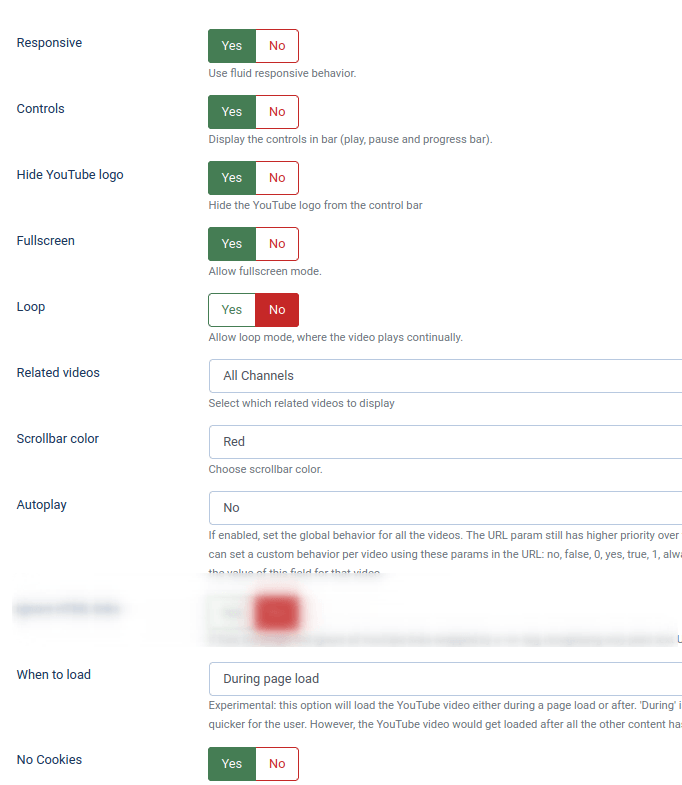
And here are the Pro features:
- Responsive. Use fluid responsive behavior.
- Controls. Display the controls of the video.
- Hide YouTube logo. Hide YouTube logo during playback.
- Fullscreen. Enable the fullscreen button.
- Loop. Allow loop mode, where the video plays continually. Please note: YouTube has given this parameter limited support in the AS3 player and in IFrame embeds, which could load either the AS3 or HTML5 player.
- Related videos. Set whether to display related videos from all the YouTube channels or from the same channel with the video being played. Works once the playback is paused or finished.
- Scrollbar color. Choose the available colors for the scrollbar.
- Autoplay. If enabled, set the global behavior for all the videos. The URL param still has higher priority over this param, so if the video URL has "...&autoplay=true" it will autoplay even if this field is set to "no". You can set a custom behavior per video using these params in the URL: no, false, 0, yes, true, 1, always, session, cookie. So for example https://www.youtube.com/watch?v=lbIFr9Mpa18&autoplay=session. It will override the value of this field for that video.
- When to load. Experimental: this option will load the YouTube video either during a page load or after. 'During' is the way it's usually done. 'After' gives it a significant speed boost, which can help for SEO and also make the page load quicker for the user. However, the YouTube video would get loaded after all the other content has loaded. So do a few page loads to see if this looks good on your particular page, just in case.
- No cookies. Set to 'Yes' to always force the use of Youtube's 'no cookies' option