
Documentation for Joomla 6
In some use cases, you may want to add an image to your Shack Forms Pro form.
You can achieve this by using the Text separator field.
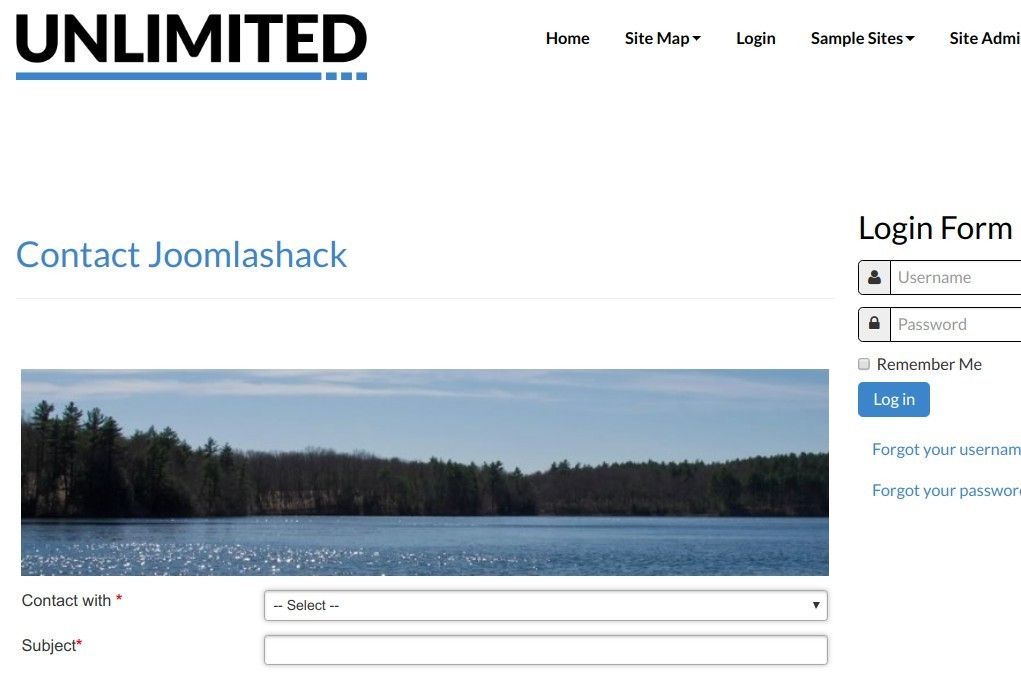
In my demonstration, I added a header image above the top Name field of a form embedded in a Joomla article:

This task is a two-step process:
- Get your required image URL.
- Create a Text separator field containing the image HTML tag.
Let's take a look at this process in more detail.
Step #1. Get your required image URL
- In your Joomla administrator panel, go to Content > Media:
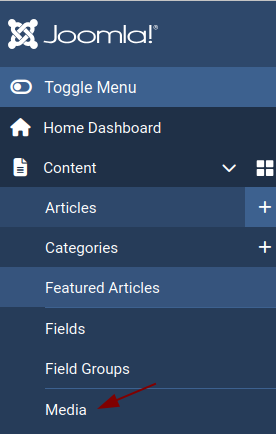
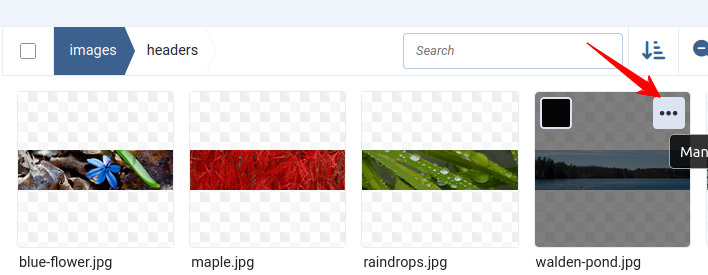
- You will be taken to the "Media" screen. Locate your required image and click on the three dots in its top-right corner:
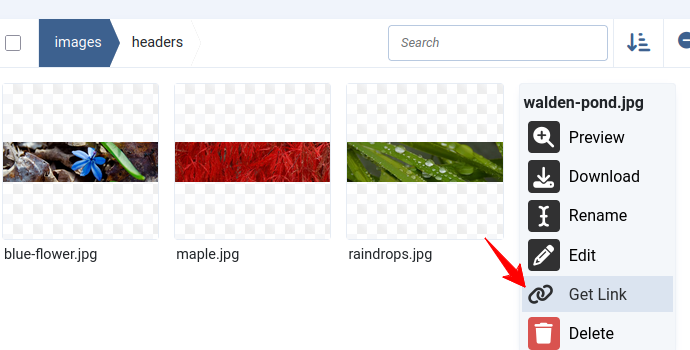
- Click Get Link:
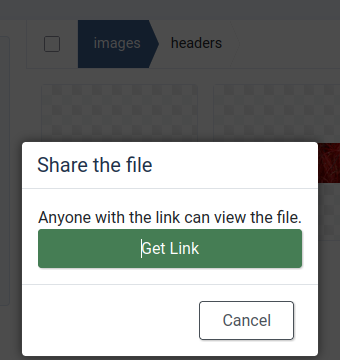
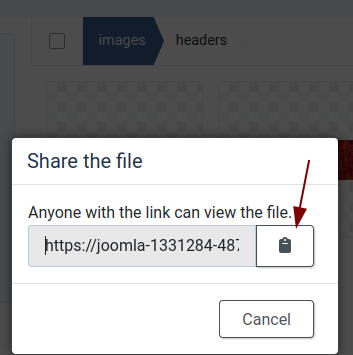
- You will see the “Share the file” box. Click Get Link:
- Click the clipboard icon to copy the source URL of your image:
-
Paste the link into a text editor. Delete everything before the
imagespart. Here is the link I copied from my Media screen:
https://my-domain-name.com/images/headers/walden-pond.jpg
-
Remove all parts of the link before
images. After removing what I don't need the link becomes:
images/headers/walden-pond.jpg
Excellent! You are now ready to place this image above or below a required field in your Shack Form.
Step #2. Create a “Text separator” field with the image HTML tag
- Open your Shack Forms Pro module to edit its settings.
- Under the Module tab, click Text:

-
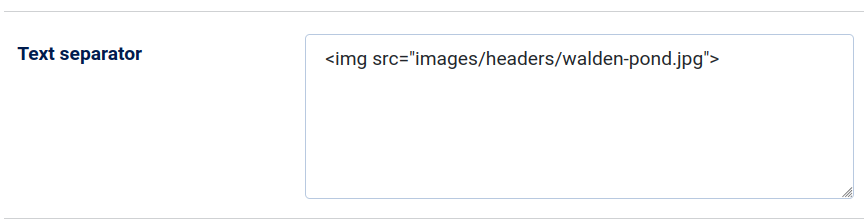
You will see the Text separator text box. Enter the HTML
imgtag for your image. In my example, I entered:
<img src="/images/headers/walden-pond.jpg" alt="Walden Pond"
      />
- Move your mouse pointer over the Text separator label. When the pointer changes to a hand, drag and drop the Text separator field above or below the required field.
- Click Save or Save & Close.
When you check your form now, you should see the image above (or below) the field, just as you intended.
Documentation for Joomla 3
In some use cases, you may want to add an image above (or below) a field in your Shack Form.
You can achieve this by using the "Text separator" field.
In my demonstration, I added a header image above the top "Contact with" field of the static form embedded in a Joomla article:
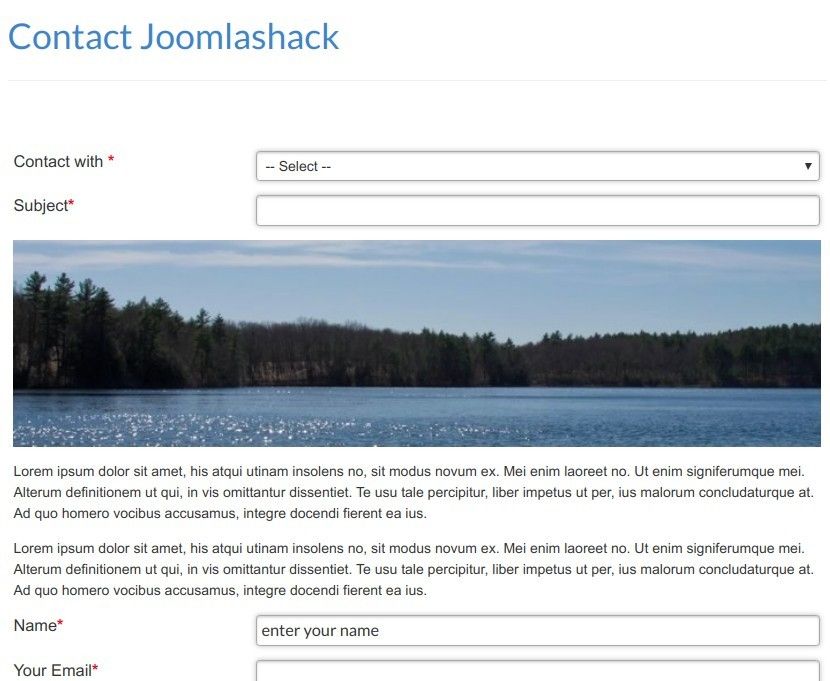
I also can display this image below the field:
Such a task is a two-step process:
- Get your required image URL
- Create a "Text separator" field with the image HTML tag.
Let's take a look at this process in more detail.
Step #1. Get your required image URL
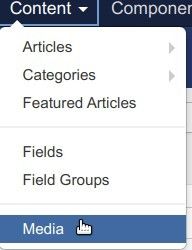
- In your Joomla administrator panel, go to "Content" > "Media":
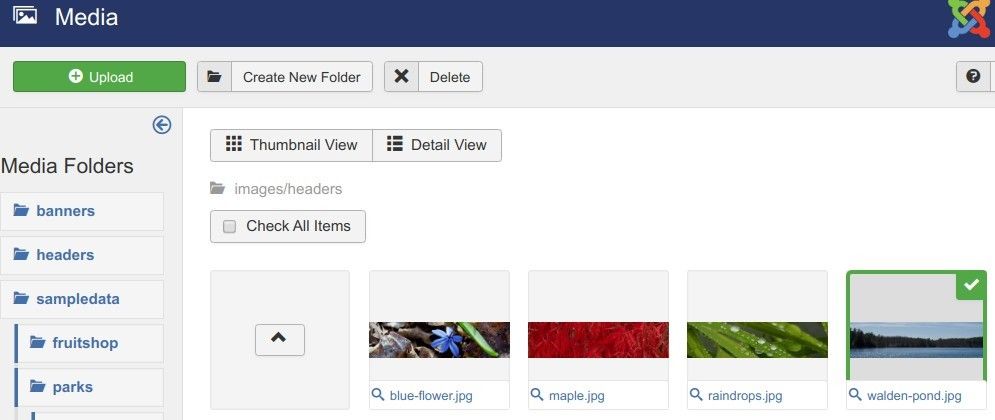
- You will be taken to the "Media" screen. Select your require image:
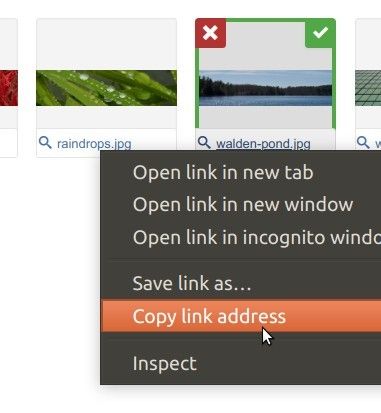
- Point your mouse to the image text link and right-click it. In the drop-down context menu, click "Copy link address":
Paste the link in a text editor. Delete what you see before the images bit.
The link I copied in my "Media" screen is as follows:
https://localhost/shackforms/images/headers/walden-pond.jpg.
Once I deleted the bits of this link that I don't need, the link becomes as follows:
images/headers/walden-pond.jpg.
Excellent! You are now ready to place this image above or below of a required field in your Shack Form.
Step #2. Create a "Text separator" field with the image HTML tag
- Open up your Shack Forms module to edit its settings.
- Under the "Module" tab, click "Text":
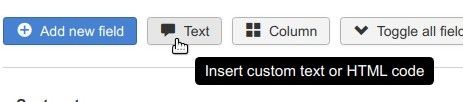
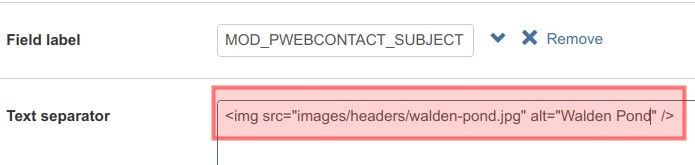
- You will see the "Text separator" filed text box appeared. Enter in this box the HTML code of the
imgtag of your image. In my example, I entered<img src="/images/headers/walden-pond.jpg" alt="Walden Pond" />:
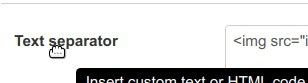
- Point your mouse pointer to the "Text separator" label. Once the pointer changed to a hand, drag and drop the "Text seaprator" field above or below the required field:
- Click "Save" or "Save & Close".
When you check your form now, you should see the image above (or below) the field, as you intended.
Feel free to use html code to position the image or to ad margin to it. For example:
<br /><img style="margin-bottom: 1px; margin-top: 1px; float: center;" src="/images/---your path to image--" alt="some SEO text about image"><br />