
Shack Forms Pro allows you to create attractive contact forms for your Joomla website. However, you may sometimes want to adjust the appearance of your form to match your website's design.
For example, you might want to change the padding inside form fields, adjust font sizes, or use different colours.
In this tutorial, we'll show you how to customise Shack Forms Pro using Joomla 6's Cassiopeia template without modifying the extension's original CSS files.
We'll use Shack Forms Pro's Blue theme as our example.
1. Check Shack Forms Pro's built-in styling options
Before writing any custom CSS, check whether Shack Forms Pro already provides the styling options you need.
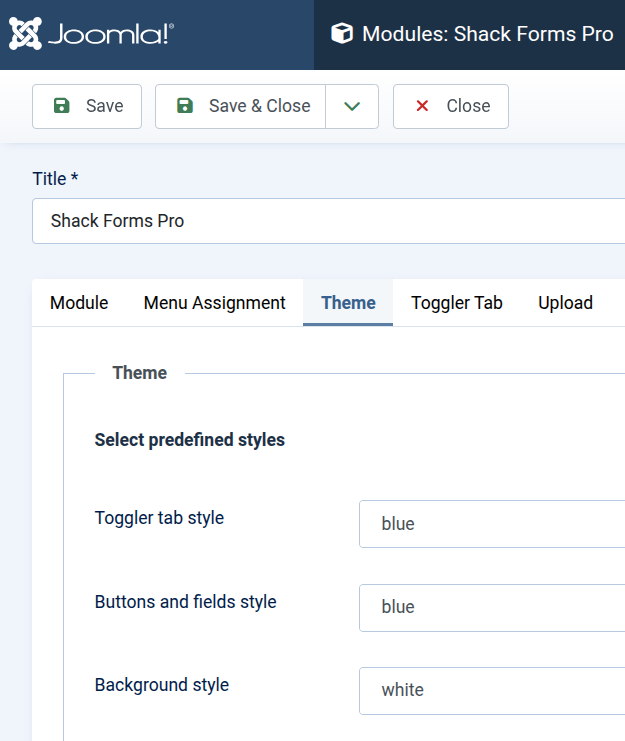
Shack Forms Pro includes a Theme tab where you can customise your form's appearance without editing CSS files.
To access these settings:
- Log in to your Joomla administrator area.
- Go to Content → Site Modules.
- Find and open your Shack Forms Pro module.
- Click the Theme tab near the top of the module editor.
- Locate the Select predefined styles section.
Here, you'll find several styling options:
- Toggler tab style: Choose the predefined appearance of the tab used to open your form.
- Buttons and fields style: Select a predefined style for your form's buttons and input fields.
- Background style: Choose a predefined background appearance for your form.
You can also explore the other settings further down the Theme tab to see which aspects of your form's appearance can be customised.
After making your changes, click Save, then refresh your website's contact form page to see the results.
When should you use custom CSS?
If the built-in settings don't provide the exact appearance you want, you can use custom CSS to make more specific adjustments.
For example, you might want to increase the padding inside input fields, change their font size or adjust their borders.
In the following steps, we'll show you how to make these changes safely using Cassiopeia's user.css file.
2. Why use a custom CSS file?
Joomla's Cassiopeia template supports a custom stylesheet called user.css.
This file is useful because:
- Your custom styles are kept separate from Shack Forms Pro's files.
- Extension updates won't overwrite your custom CSS.
- You can make small changes without copying entire stylesheets.
- You can manage your CSS directly from Joomla's administrator interface.
The file is located at:
/media/templates/site/cassiopeia/css/user.css
3. Create the user.css file in Cassiopeia
If your Cassiopeia template already has a user.css file, you can skip this step.
To create one:
- Log in to your Joomla administrator area.
- Click System in the left-hand menu.
- Under Templates, click Site Templates.
- Click Cassiopeia Details and Files.
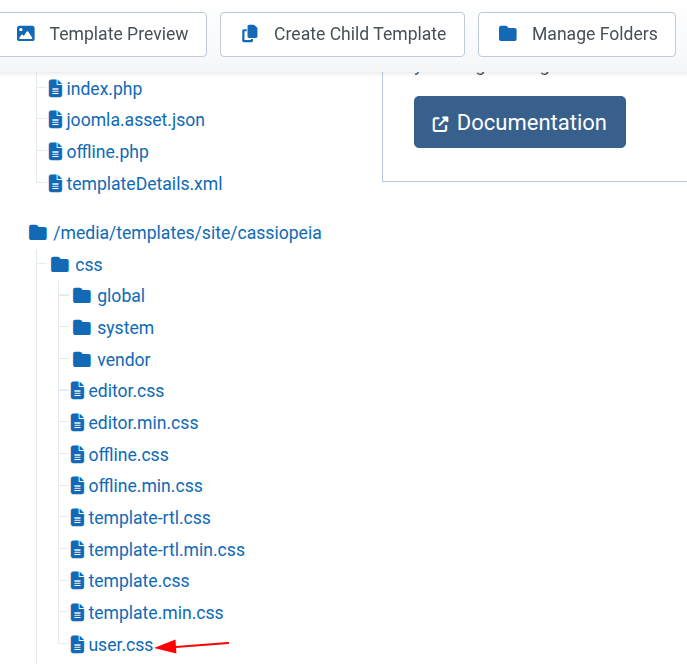
Now create the file:
- Click New File.
- Select the css folder.
- Enter user as the file name.
- Select .css as the file type.
- Click Create.
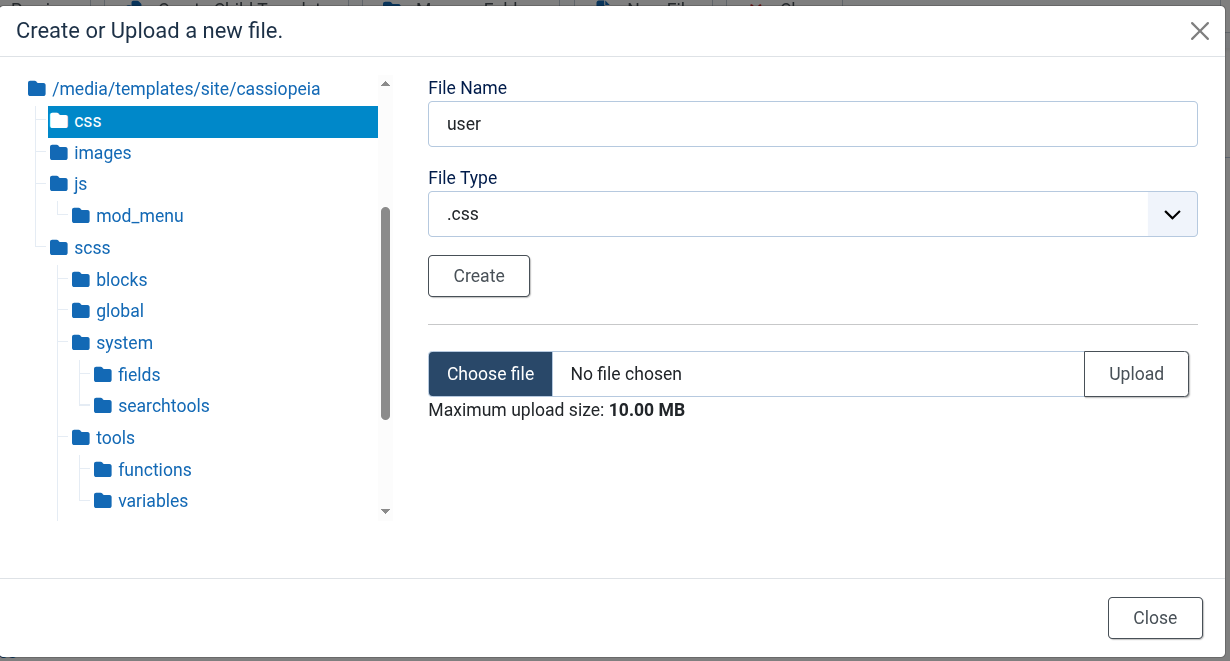
Joomla will create the file inside Cassiopeia's CSS folder.
4. Identify the CSS used by Shack Forms Pro
Before changing your form's appearance, you need to identify which CSS selectors control its fields.
You can do this using your browser's developer tools.
For this example, we'll use Google Chrome.
- Open the page containing your Shack Forms Pro form.
- Right-click the Name field.
- Select Inspect from the context menu.
- Chrome DevTools will open and highlight the HTML element corresponding to the field.
- Look at the Styles panel to see which CSS rules apply to it.
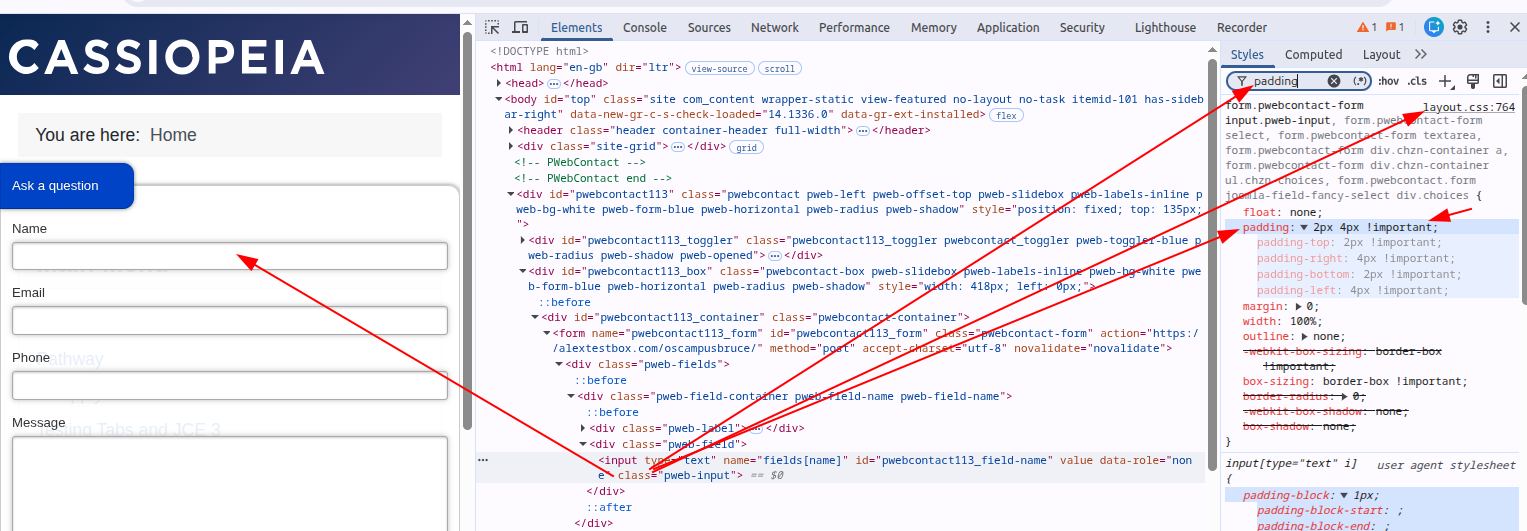
When using Shack Forms Pro's Blue theme, you may find a selector similar to:
.pweb-form-blue form.pwebcontact-form input.pweb-inputThis selector targets input fields inside a Shack Forms Pro form using the Blue theme.
5. Customise the padding of your form fields
Let's change the padding inside the text fields and message box.
Padding is the space between the content of a field and its border.
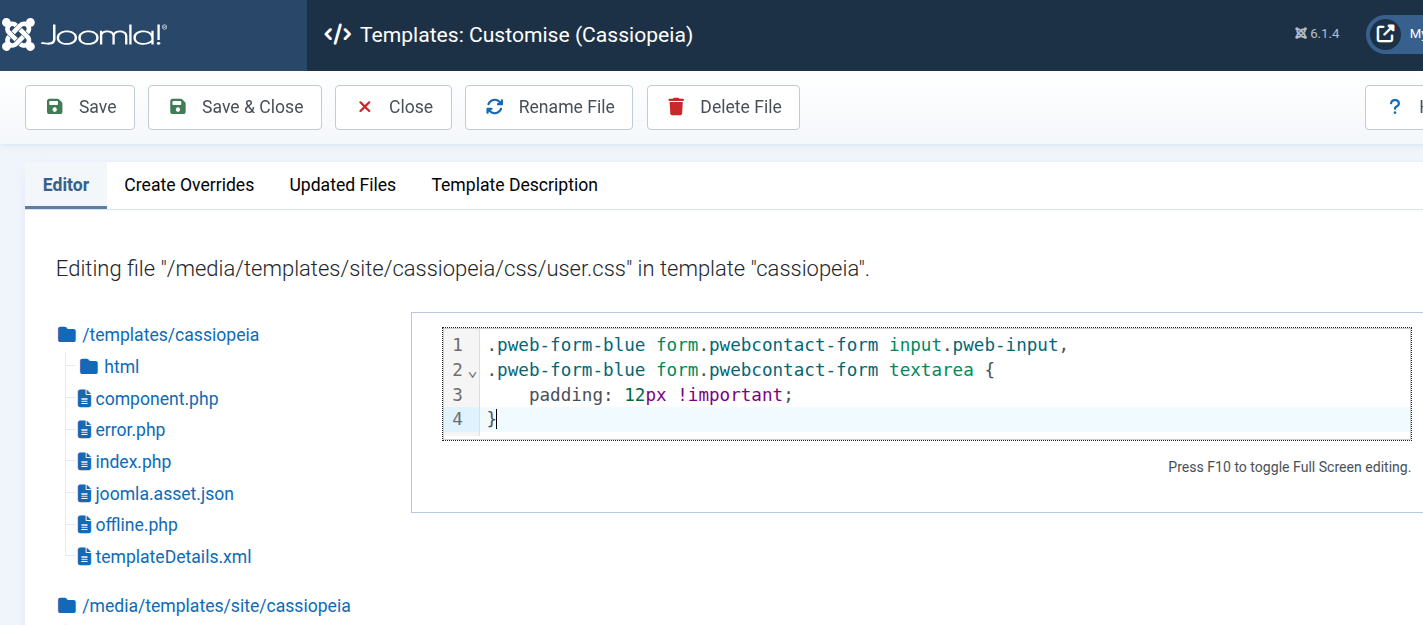
Open your Cassiopeia user.css file and add:
.pweb-form-blue form.pwebcontact-form input.pweb-input,
.pweb-form-blue form.pwebcontact-form textarea {
    padding: 12px !important;
}
Save the file and refresh your contact form page.
This CSS applies 12 pixels of padding to all four sides of the targeted input fields and textareas.
You can also use different values for vertical and horizontal padding:
.pweb-form-blue form.pwebcontact-form input.pweb-input,
.pweb-form-blue form.pwebcontact-form textarea {
    padding: 8px 15px !important;
}
Here:
- 8px controls the top and bottom padding.
- 15px controls the left and right padding.
6. Why might your CSS changes not work?
Sometimes you may add a perfectly valid CSS rule, save your changes and discover that the form's appearance hasn't changed.
One possible reason is that another stylesheet has a rule that takes precedence.
For example, Shack Forms Pro's layout.css contains a padding declaration similar to:
padding: 2px 4px !important;The !important keyword gives a CSS declaration additional priority.
If you add a normal padding declaration to user.css, it may not override the existing declaration.
For example:
padding: 12px;In our Joomla 6 test, this declaration was overridden by the padding rule in Shack Forms Pro's layout.css.
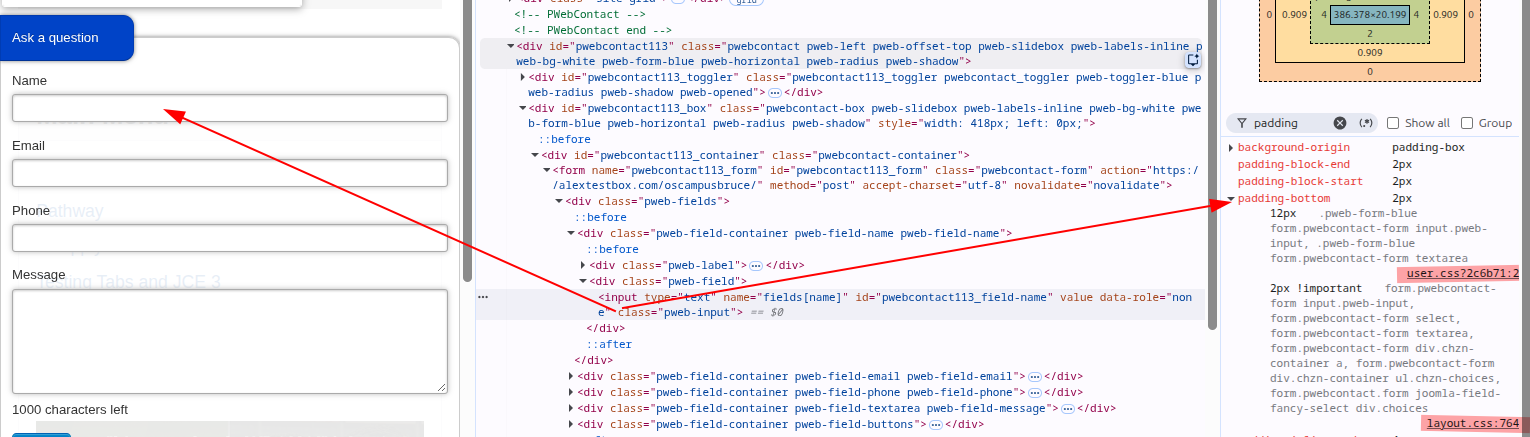
We resolved the conflict by using:
padding: 12px !important;Because our custom selector was sufficiently specific, the updated rule took precedence.
Important: You shouldn't automatically add !important to every CSS rule. Use it only when necessary, after checking which existing styles are taking precedence.
7. Check that your custom CSS is working
You can verify your changes using Chrome DevTools.
- Open your contact form page.
- Right-click the Name field and select Inspect.
- Click the Computed tab in DevTools.
- Type padding into the filter field.
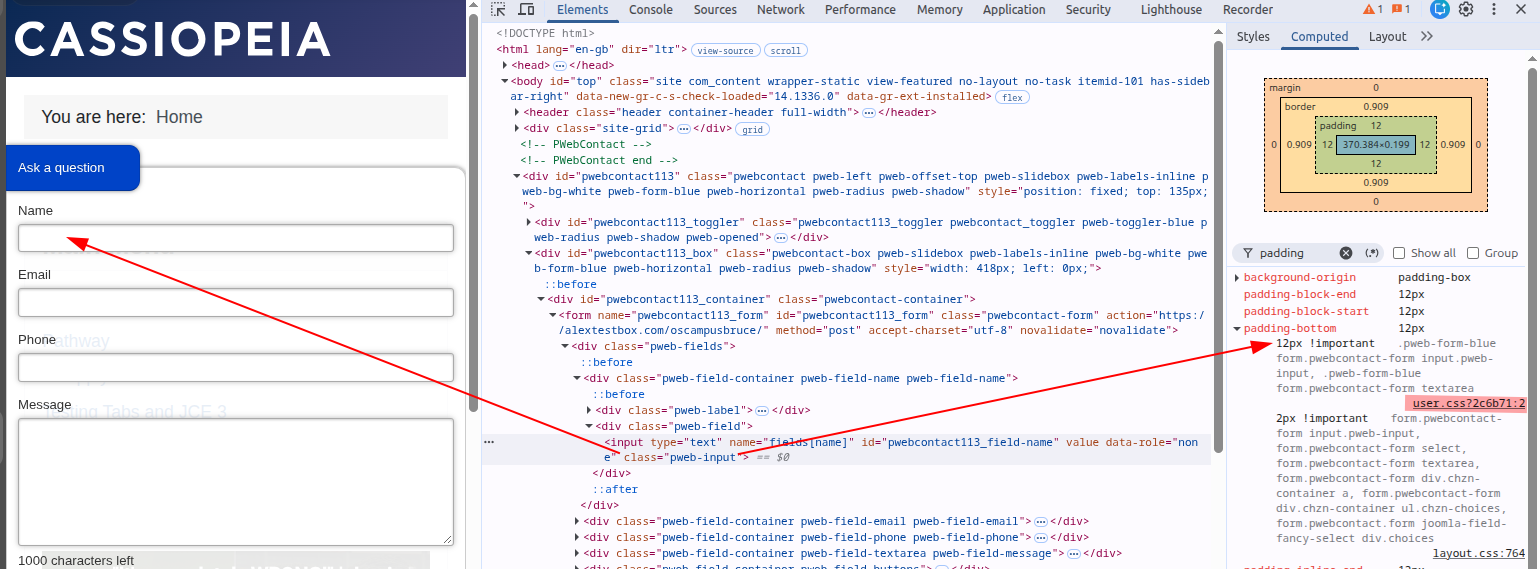
- Expand the padding properties to see their applied values and the CSS rules responsible for them.
If your custom rule is working, the computed padding values should match those you specified in user.css.
For example, if you used padding: 12px !important;, the top, right, bottom and left padding should each be 12 pixels.
Why does our custom CSS rule take precedence?
In Chrome DevTools, the Computed panel shows the winning CSS declaration above competing declarations. In our example, 12px !important from user.css takes precedence over 2px !important from layout.css.
This happens because our custom CSS selector is more specific. CSS specificity determines which rule takes precedence when multiple rules target the same element with the same importance. Our selector includes the .pweb-form-blue class in addition to the form and input selectors, making it more specific than the corresponding rule in layout.css. Since both declarations use !important, the browser applies the declaration with the higher specificity.
The order shown in Chrome DevTools helps us identify which declaration wins, but it does not itself determine CSS precedence.
8. Troubleshooting your custom CSS
If your changes still don't appear, check the following.
Make sure user.css is loading
Open Chrome DevTools, select the Network tab, reload the page and search for user.css.
If the file appears with a successful response, the browser is loading it.
Joomla may add characters after the filename, such as user.css?2c6b71. This is normal.
Check your CSS selectors
The examples in this tutorial use Shack Forms Pro's Blue theme.
If you're using another theme, its CSS classes may differ. Inspect your form's HTML and adjust the selectors accordingly.
Clear your browser cache
Try refreshing the page with Ctrl + Shift + R on Windows or Linux.
If necessary, also clear Joomla's cache.
Check for conflicting CSS rules
Use Chrome DevTools to identify declarations that override your custom styles.
Pay particular attention to selector specificity and !important.
Check that you're editing the correct template
If your website uses a different template or a customised Cassiopeia child template, the location of its custom CSS file may differ.
Conclusion
You don't need to modify Shack Forms Pro's original CSS files to customise your contact forms.
Start by exploring the built-in styling options in the Theme tab.
For more specific changes, Joomla 6's Cassiopeia template provides the user.css file, where you can adjust padding, fonts, colours and other visual properties.
By combining this approach with Chrome DevTools, you can identify the correct CSS selectors, troubleshoot conflicting rules and make changes that remain separate from extension updates.