
Shack Forms Pro can include the Joomla page title at the bottom of emails sent from your forms.
If you don't want the page title to appear in these emails, you can remove it with a Joomla template override. This approach avoids editing the Shack Forms core files, so your customization won't be overwritten when you update Shack Forms.
This guide will show you how to create the override manually from your Joomla administrator dashboard.
Step #1. Open Your Joomla Template
- Log in to your Joomla administrator dashboard.
- Go to System.
- Under Templates, click Site Templates.
- Click the name of the template your site is currently using.
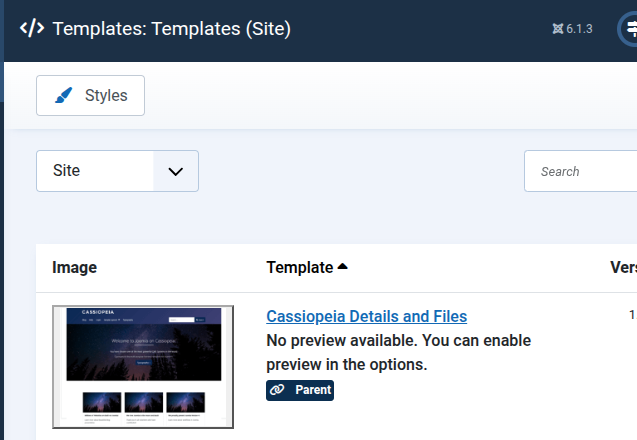
Step #2. Create the Override Folders
You need to create the following folder structure inside your active Joomla template:
html/layouts/com_shackforms/email/
- Click Manage Folders.
- Open the
htmlfolder. - If a
layoutsfolder doesn't exist, create one. - Inside
layouts, create a folder namedcom_shackforms. - Inside
com_shackforms, create a folder namedemail.
You should now have this folder structure:
html/layouts/com_shackforms/email/
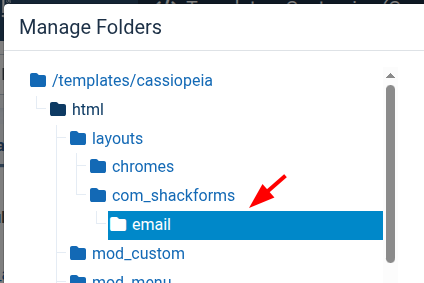
Step #3. Create the user.php Override File
- Select the
emailfolder you created in the previous step. - Click New File.
- Enter
useras the file name. - Select php as the file type.
- Click Create.
Your new override file should be located at:
/templates/YOUR-TEMPLATE/html/layouts/com_shackforms/email/user.php
Replace YOUR-TEMPLATE with the folder name of your active Joomla template.
For example, if you use Cassiopeia:
/templates/cassiopeia/html/layouts/com_shackforms/email/user.php
Step #4. Copy the Original Email Layout Code
The original Shack Forms email layout is located at:
/components/com_shackforms/layouts/email/user.php
- Open the original
user.phpfile. - Copy all of the code inside the file.
- Return to the new
user.phpfile you created in your template. - Paste the copied code into your new file.
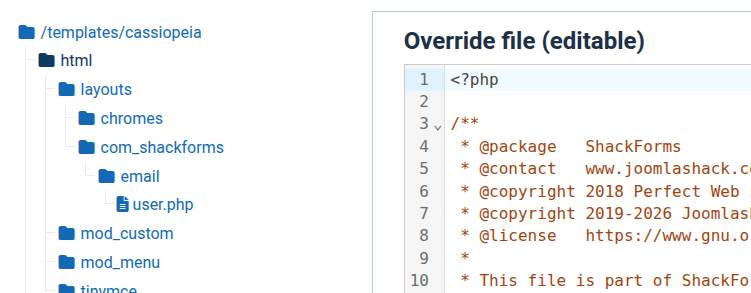
Do not make changes to the original file under /components/com_shackforms/.
Step #5. Remove the Page Title
In your new template override, find this line:
{lang:MOD_PWEBCONTACT_PAGE_TITLE}: <a href="/{url}">{title}</a><br>
- Delete this line.
- Click Save & Close.
Your override without the title will look as follows:
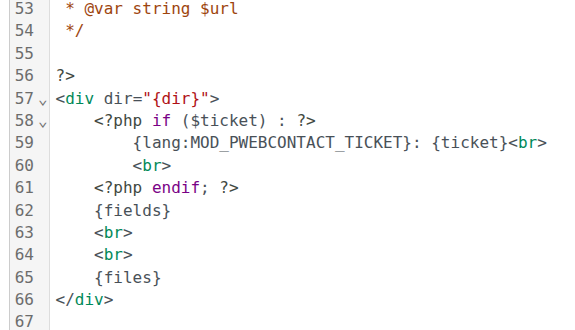
Step #6. Test Your Shack Forms Email
- Go to the page containing your Shack Forms form.
- Complete the form with test information.
- Submit the form.
- Check the resulting email.
The form information should still appear normally, but the Page title should no longer be displayed.
Why Use a Template Override?
You could remove the Page title by editing:
/components/com_shackforms/layouts/email/user.php
However, we don't recommend this.
This is a Shack Forms core file. A future Shack Forms update may replace it and remove your customization.
The template override instead lives under your Joomla template:
/templates/YOUR-TEMPLATE/html/layouts/com_shackforms/email/user.php
This keeps the Shack Forms core files unchanged and protects your customization when you update the extension.
Troubleshooting the Create Overrides Screen
You may also see the Shack Forms → email layout under Joomla's Create Overrides screen.
Normally, Joomla can automatically create template overrides from this screen.
However, if selecting the Shack Forms email layout produces a “Snooping out of bounds” error, create the override manually using the steps in this guide.
Once the manual override is in place, Joomla will use it for the Shack Forms email layout.