
Documentation for Joomla 3
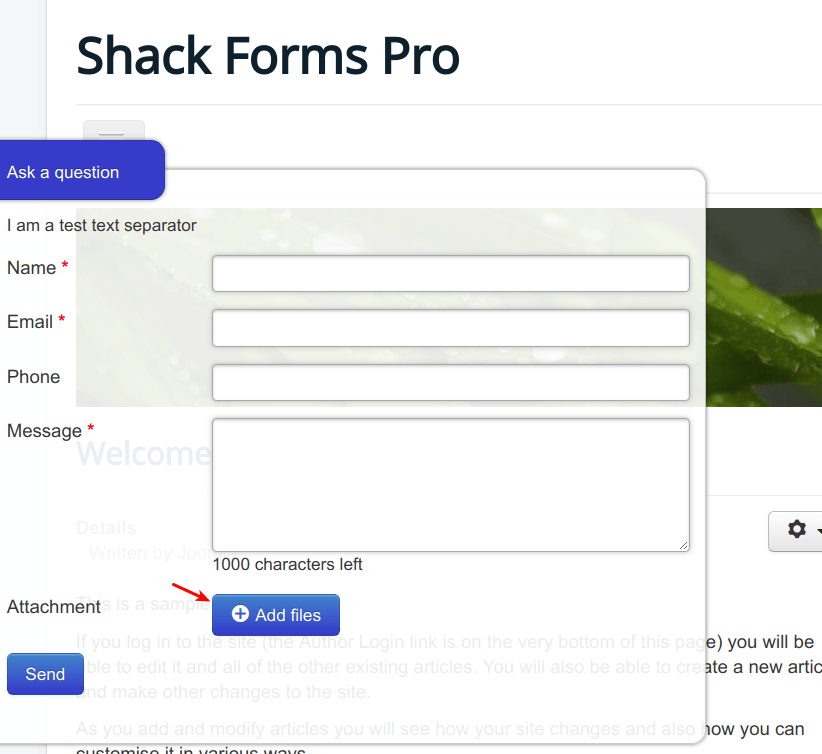
Using Shack Forms, you can allow your site's visitors to upload files and send them to you. This image below shows a Shack Form with this upload feature.
Video guide to uploading files with Shack Forms
Text guide to uploading files with Shack Forms
Let's see how to enable the file upload feature:
- Go to Extensions > Modules.
- Open the contact form module you built with Shack Forms.
- Click the Upload tab.
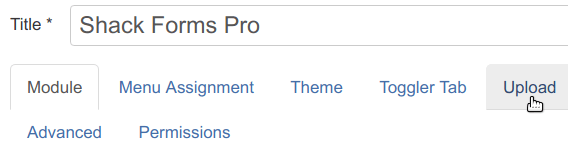
Under the Upload tab, set the following options:
- Show upload: click Yes or Require.
- Attachment type in email: click Files.
- Delete files after sending: click Yes if you would like to delete files from your server once they have been sent in a form. To keep the uploaded files on your server, click No.
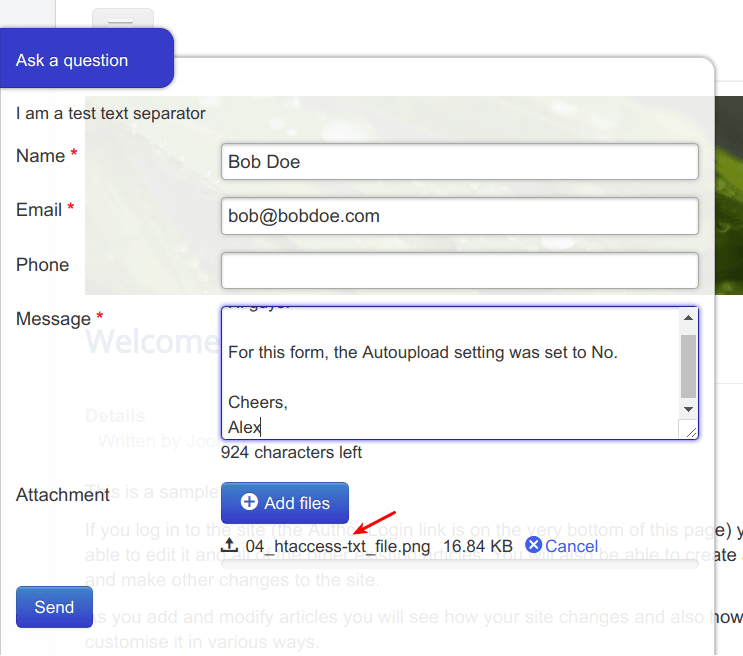
- Autostart upload: click Yes if you would like a file to be uploaded once a user selects it on their hard drive. Otherwise, it will be uploaded only when the user clicks the Send button:
- Server max upload size: this parameter will be set automatically, based on your server.
- File size limit (MB): set desired file limit in MB.
- Files limit: set here the maximum number of files allowed to be sent with one sending. Set the value 0 for no limits.
- Allowed file extensions: leave the default value of
gif|jpe?g|png|docx?|odt|txt|pdf|zip. - Show limits in tooltip: leave the default Yes.
- Upload label: leave empty to use default labels set in Shack Forms language file.
Documentation for Joomla 5
File uploads are one of the most powerful features in Shack Forms Pro — and the Upload tab is where all that power is controlled. Unlike many form builders, Shack Forms Pro manages uploads entirely at the module level, keeping configuration centralized, predictable, and secure.
In this document, we’ll walk through every setting in the Upload tab, explain what it does, and share practical tips so you can configure uploads with confidence.
1. Show upload
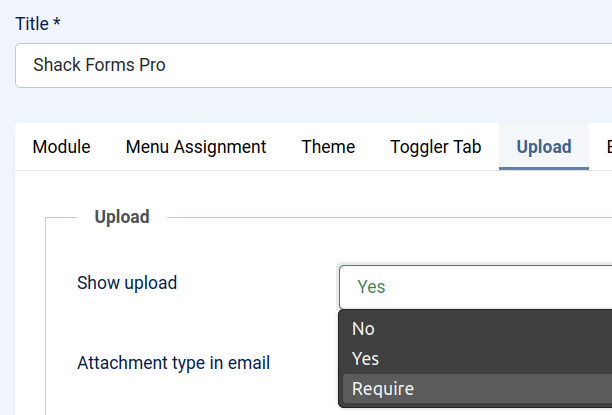
This is the master switch for file uploads.
- No → No file upload input is shown on the form
- Yes → A file upload input is automatically added to the form
Important: There is no separate upload field to add. Enabling this option injects the upload input automatically into the frontend form.
2. Attachment type in email
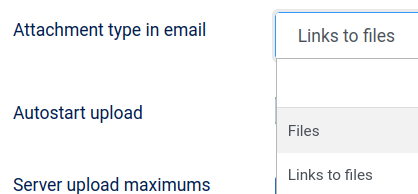
This setting controls how uploaded files are included in notification emails.
Typical behaviors include:
- Attachments – Files are physically attached to the email
- Links – Emails contain links pointing to the uploaded files
Tip: For large files, links are usually safer. Email providers often block or truncate large attachments.
3. Autostart upload
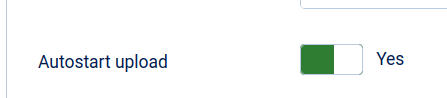
When enabled, file uploads begin automatically as soon as the user selects a file.
- Yes → Upload starts immediately
- No → Upload waits until form submission
This setting improves user experience for:
- Large files
- Multiple-file uploads
- Slower connections (errors appear earlier)
4. Server upload maximums
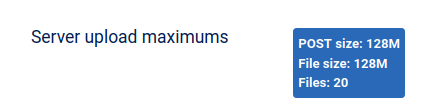
These values are read-only and reflect your PHP server limits.
Example:
- POST size: 128M
- File size: 128M
- Files: 20
Critical rule: These limits cannot be overridden by Shack Forms Pro. Even if you allow larger values below, PHP will always win.
Use this section to:
- Diagnose upload failures
- Explain limits to clients or site owners
- Verify hosting configuration
5. File size limit (MB)

Sets the maximum size per uploaded file, in megabytes.
- Must be equal to or lower than PHP’s file size limit
- Setting it higher will not work and may confuse users
Best practice:
- Match this closely to your real use case
- Leave some buffer below PHP limits
6. Files limit

Controls the maximum number of files per form submission.
This limit works together with:
- PHP’s max file upload count
- Frontend validation
- Email attachment handling
Tip: If users report missing files, this is one of the first settings to check.
7. Allowed file extensions

Defines which file types users are allowed to upload.
Example:
jpg, png, pdf, docxKey points:
- Extensions are comma-separated
- Case-insensitive
- Acts as a server-side security filter
Note: Files not listed here are rejected — even if the browser allows selection.
8. Show limits in tooltip

When enabled, users see upload limits (file size, file count, extensions) in a tooltip.
Benefits:
- Improves clarity
- Reduces failed submissions
- Minimizes support requests
Highly recommended for public-facing forms.
9. Upload tooltip

This is the custom tooltip text shown to users.
You can use it to:
- Explain what files are expected
- Add friendly instructions
- Clarify size or format rules
Example:
You may upload up to 3 PDF or image files. Maximum size per file: 5MB.
10. Upload label

Controls the text label displayed next to the upload input.
Use this to:
- Match your site’s tone
- Make expectations clear
- Improve accessibility
Example labels:
- Attach files
- Upload documents
- Add supporting images
11. Upload path

This defines where uploaded files are stored on your site.
Default structure:
media/mod_pwebcontact/upload/<your-module-id-number>/Why this matters:
- Each module gets its own isolated folder
- Prevents filename collisions
- Improves organization and security
Tip: Make sure the folder is writable by PHP.
Final thoughts
The Upload tab in Shack Forms Pro is more than just a few toggles — it’s a carefully designed, form-level upload system that balances usability, security, and reliability.
If uploads ever fail, remember this checklist:
- Is Show upload enabled?
- Do PHP limits allow it?
- Are file size and file count aligned?
- Are extensions explicitly allowed?
- Is the upload folder writable?
Configured correctly, file uploads in Shack Forms Pro are rock-solid and user-friendly.