Documentation for Joomla 6
With the Shack Toolbox Pro module, you can display a Joomla 6 pop-up or a static module with a menu item.
In this tutorial, you will learn how to use a Joomla 6 menu item to display your Shack Toolbox Pro pop-up with a Joomla article.
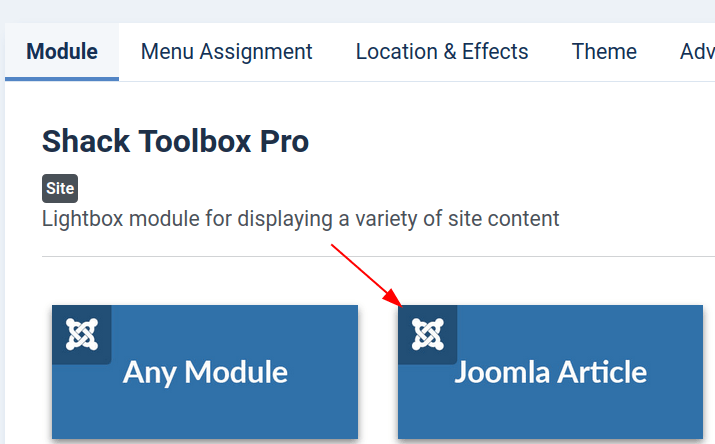
- In your Shack Toolbox Pro module, go to the "Module" tab and click the "Joomla Article" box:
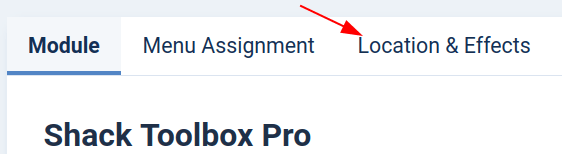
- Click the "Location & Effects" tab:
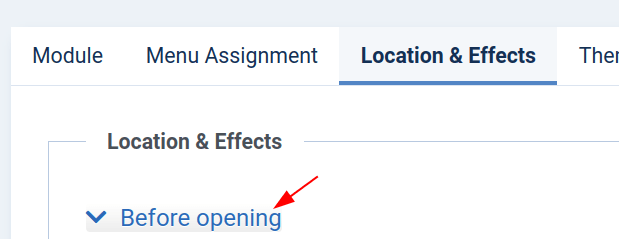
- Click "Before opening":
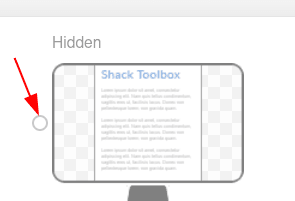
- Click "Hidden":
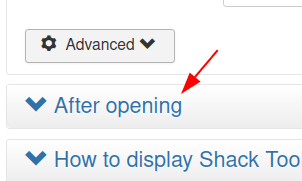
- Click "After opening":
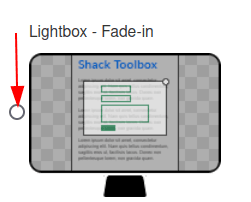
- Click "Lightbox - Fade-in":
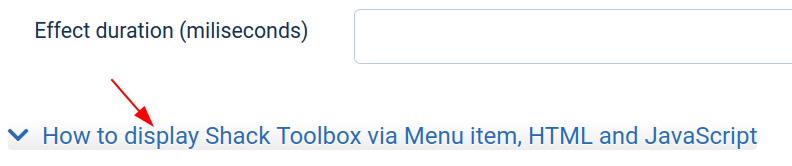
- Click "How to Display Shack Toolbox via Menu item, HTML and JavaScript":
- Copy the code in the "Menu Item" section:

- Go to the "Themes" tab and select a theme of your choice.
- Click "Save & Close".
- Go to "Menus" > <Your Preferred Menu">. Create a new menu item by the "URL" type. Paste the link you just copied into the menu item "Link" field and save this menu item:
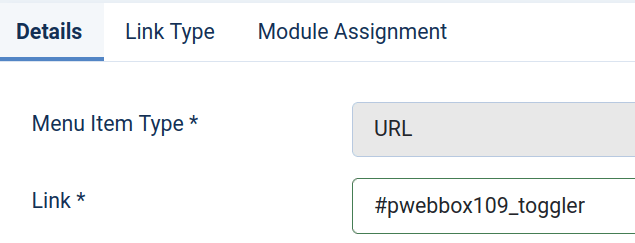
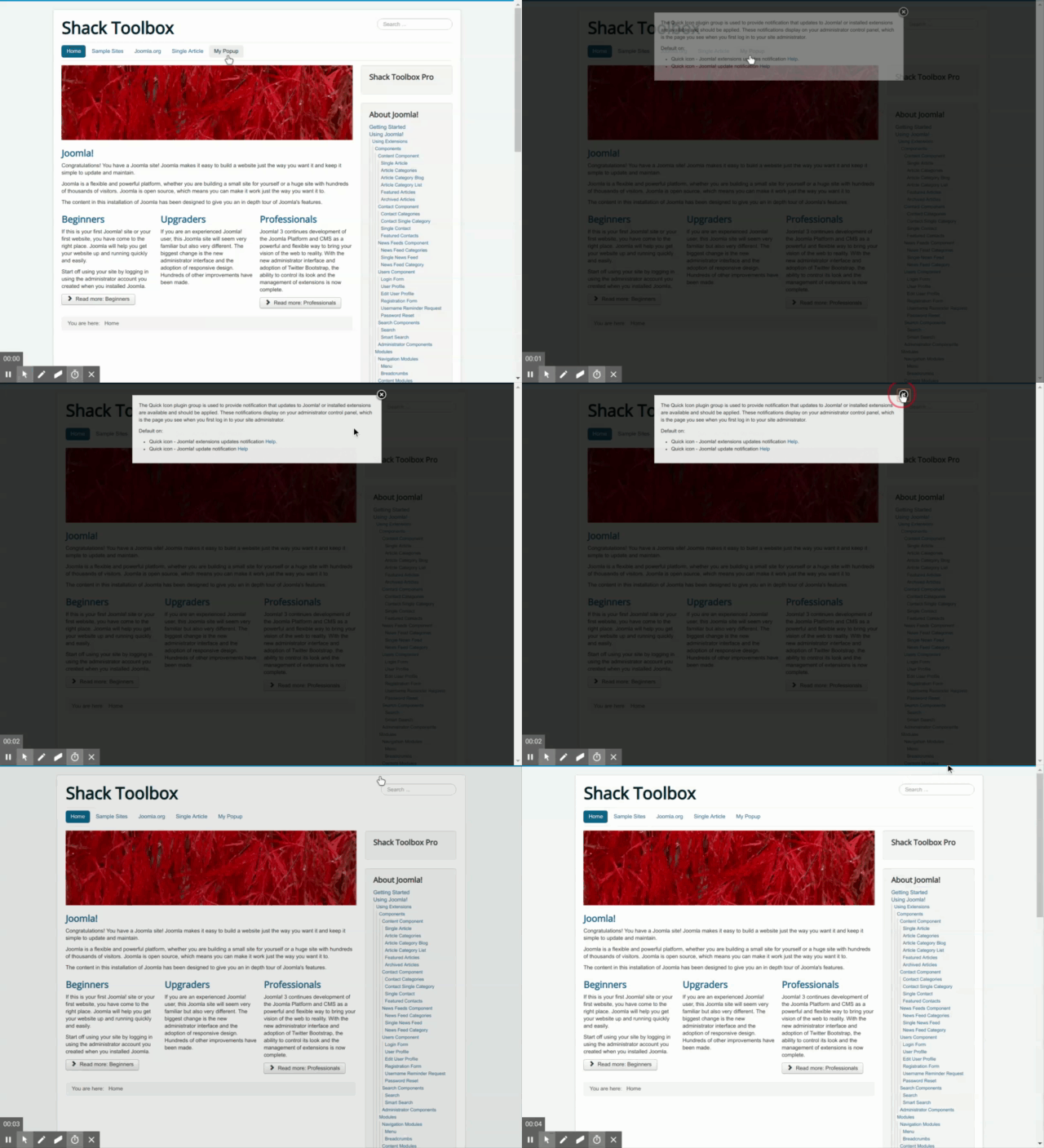
- Go to your Joomla site frontend and click this menu item. You will see the pop-up opening.
Documentation for Joomla 3
With the Shack Toolbox Pro module, you can display a Joomla pop-up or static module with a menu item.
In this tutorial, you will learn how to use a Joomla 3 menu item to display your Shack Toolbox popup with a Joomla article.
- In your Shack Toolbox, go to the "Module" tab and click on the "Joomla Article":
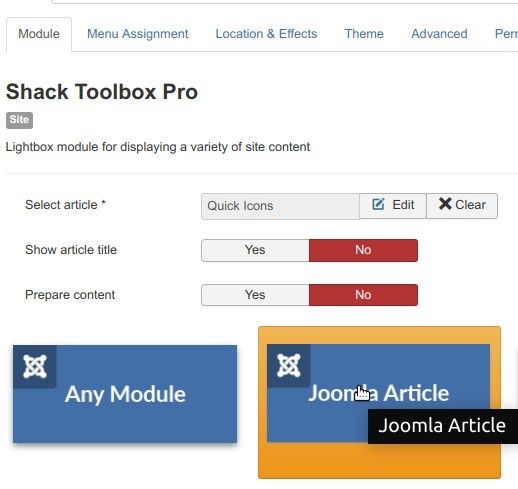
- Click the "Location & Effects" tab:
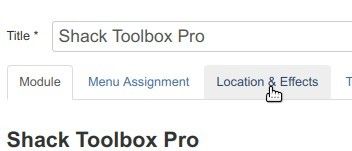
- Click "Before opening":
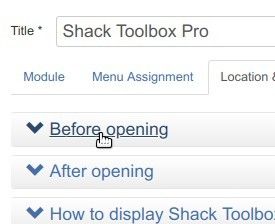
- Click "Hidden":
- Click "After opening":
- Click "Lightbox - Fade-in":
- Click "How to Display Shack Toolbox via Menu item, HTML and JavaScript":

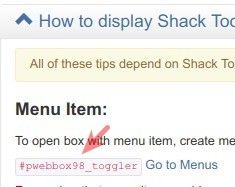
- Under "Menu Item", find the string resembling
#pwebbox98_togglerand copy it:
- Click "Save & Close".
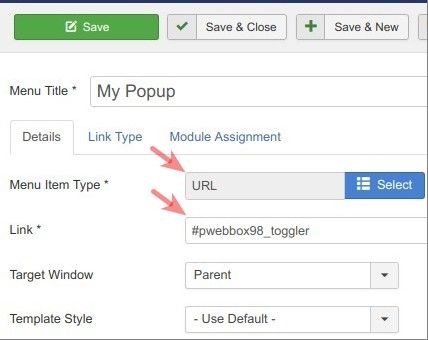
- Go to "Menus" > <Your Preferred Menu">. Create a new menu item by the "URL" type. Paste the link you just copied into the menu item "Link" field and save this menu item:
- Go to your Joomla site frontend and click this menu item. You will see the pop-up opening: