When we get two people inside a few minutes in our support system asking how to do the same thing, it's time for a tutorial ...
This week, two Joomlashack members were asking how they can upload documents and link to them from articles. Our recommendation is an extension called OSDownloads.
By the end of this tutorial, you will learn:
- How to upload files to your Joomla site with OSDownloads.
- How to add uploaded files to Joomla articles for download.
Step #1. Install OSDownloads Pro
- Go to Joomlashack.com and download OSDownloads Pro.
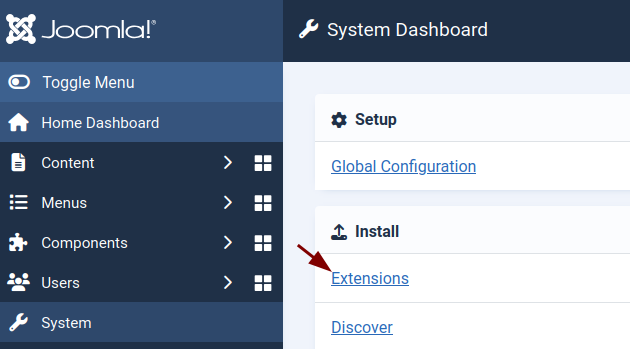
- In your Joomla dashboard, go to System > Install > Extensions and install OSDownloads Pro.
Step #2. Upload required documents
Use OSDownloads to upload any document you wish to attach for downloads in your Joomla article.
For this guide, I will upload a PDF file.
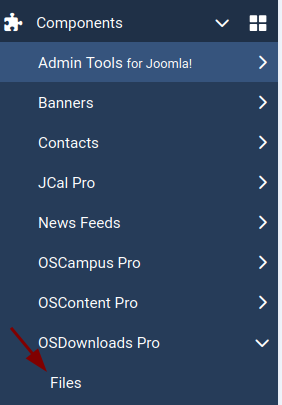
- In your Joomla dashboard, navigate to Components > OSDownloads Pro > Files:
- You will be taken to the OSDownloads Pro: Files administrative screen.
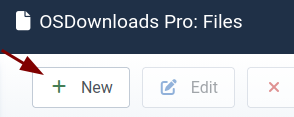
- In the top left corner, click New.
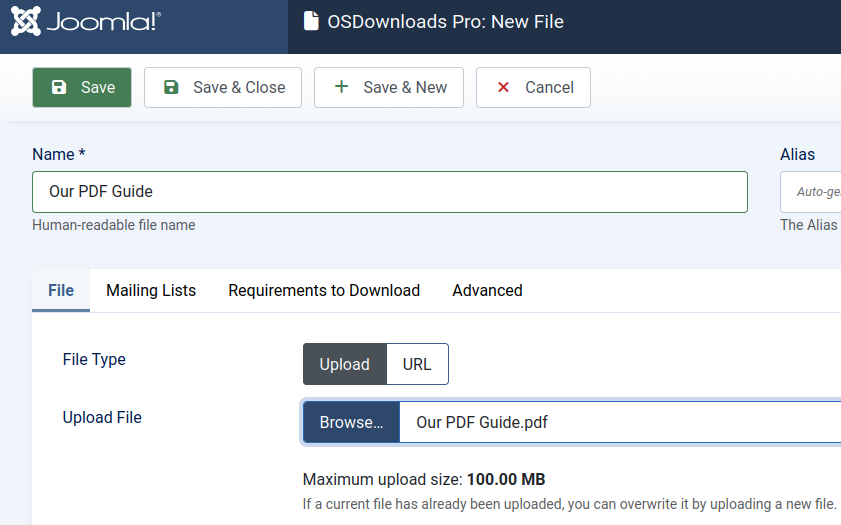
- This will open the OSDownloads Pro: New File screen.
- Enter your file name into the Name field.
- Click Browse and select a file from your hard drive.
- Click Save & Close.
- You will see your file now listed. Please take note of its ID number. My file has ID number 2:
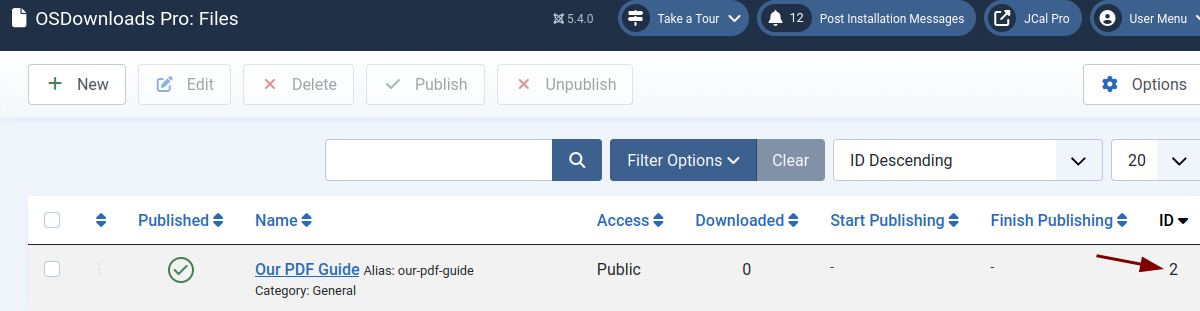
You will need this file ID number in the next step.
Excellent! Your PDF file is now uploaded to your site and ready to be added to a Joomla article.
Step #3. Attach the file to a Joomla article
Now, let's attach the file you just uploaded to OSDownloads Pro to a Joomla article.
- Open a Joomla article to which you wish to attach the file you just created.
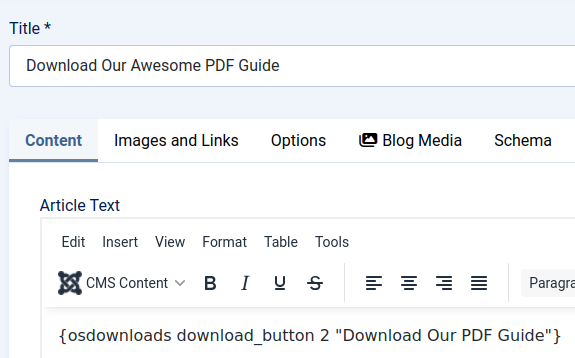
- Anywhere in the text of the article, add the following code snippet:
{osdownloads download_button ID-number-of-the-file "Your text goes here"}
This is how my code snippet looks inside the text of my Joomla article:
- Click Save & Close to close your article.
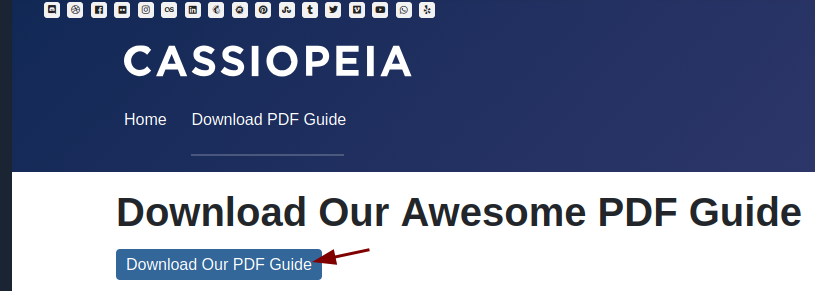
Now check the article. You will see a button at the bottom of the article allowing you to download the PDF file directly from the article page: