

One of the reasons for the Shack Forms Pro's popularity is its flexibility. With this popular Joomla extension, you have many options to change your form design without touching any code.
One of our customers asked how to add an image above a field in the form they built with Shack Forms Pro. In this blog post, I'll show you how you can do this. It's super easy using the built-in Text separator field.
Check out this quick example where I popped a nice header image right above the main Name field in a form

It's just a quick two-step dance, and we'll be done! First, we need to grab the right URL for our image, and then we'll use that URL inside the magical Text separator field.
Let's dive in!
Step #1. Let's Grab That Image URL
First things first, let's head over to the backend of your Joomla site. Pop into the main menu and navigate to Content > Media.
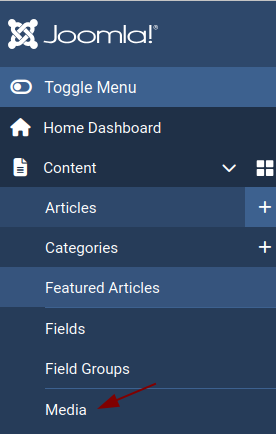
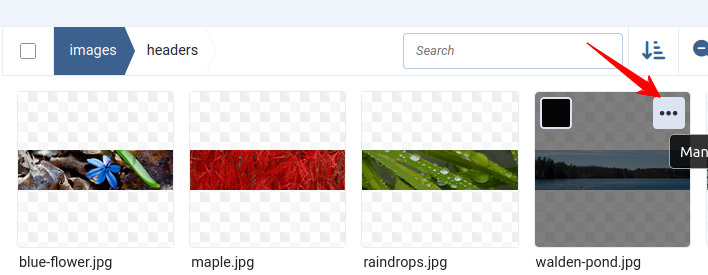
Once you're in the "Media" screen, find the awesome image you want to use. See those three little dots in the top-right corner of the image? Go ahead and give those a click!
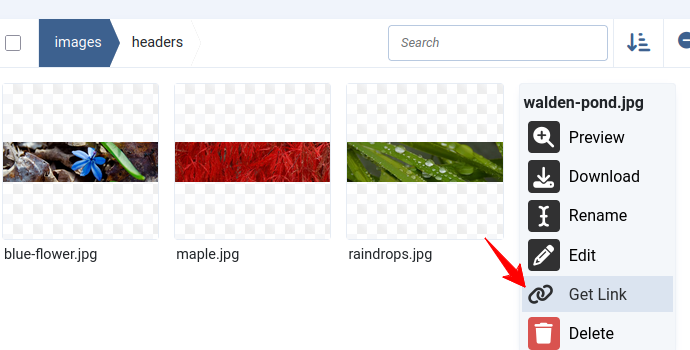
A small menu will appear. You want to select the Get Link option.
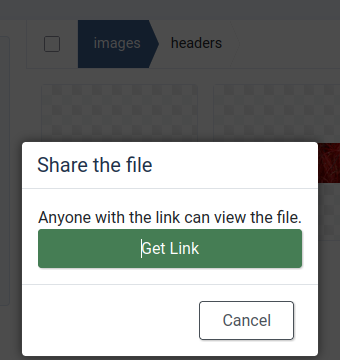
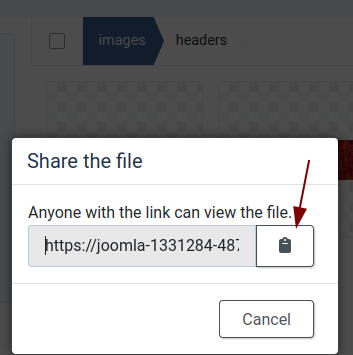
The “Share the file” box will pop up next. Don't let it confuse you—we're still just trying to get that URL! Click the Get Link button right here:
Now for the fun part! Just click the handy clipboard icon, and that image's full source URL will be copied straight to your clipboard:
Hold on, one crucial step before we move on! Paste that long link you just copied into a simple text editor (like Notepad or a blank document). We only need the relative path, so you need to delete all the parts of the URL that come before the images folder.
For example, the full link I got was:
[https://my-domain-name.com/images/headers/walden-pond.jpg](https://my-domain-name.com/images/headers/walden-pond.jpg)
But after trimming off the domain name and extra stuff, our perfect, clean link becomes this:
images/headers/walden-pond.jpg
Fantastic! You've got the perfect relative URL, and you're now fully prepared to insert this beautiful image into your Shack Form, right where you need it!
Step #2. Inserting the Image with the Text separator field
Time to jump back to the form itself! Go ahead and open up your Shack Forms Pro module settings for editing.
Under the main Module tab, look for the list of available field types. We want the one labeled Text. Go ahead and click it to add it to your form structure:

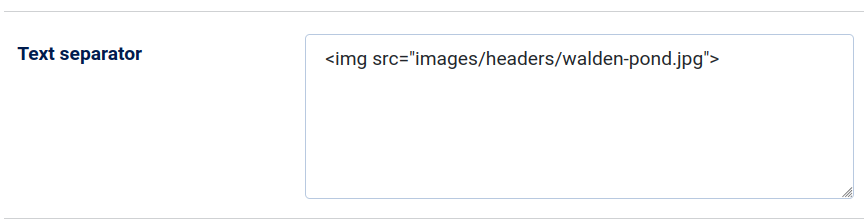
This will open the Text separator box, as you can see in the next image. This is where we drop in a tiny bit of HTML to make the magic happen! You just need to use the standard img tag, putting your relative link (the one we just cleaned up!) into the src attribute. Remember to add helpful alt text for accessibility, too!
Here is what I used for my example:
<img src="/images/headers/walden-pond.jpg" alt="Walden Pond"
/>
Almost there! Now, just hover your mouse over the Text separator label until you see the pointer change to a hand. You can now drag and drop the field exactly where you want the image to appear—above or below any other field!
Once it's in the right spot, don't forget the most important step: hit that Save or Save & Close button!
And voilà! Give your form a quick check on the frontend. You should see your beautiful image perfectly placed above (or below!) the field, exactly as you planned. Happy form building!
What's Next?
Save $1,000's when you sign up for Joomlashack's Everything Club.
You will get your hands on our extensive range of over 20 extensions, plus legendary support!