
Tags are extremely useful for organizing your Joomla content. But, by default, Joomla will display them sitewide.
Your Tags will get displayed on a featured articles page and on category blog pages.
One of our customers asked us how to display Tags only on single Joomla articles. So, in this tutorial, I'll show you how to hide tags on blog and category pages.
What are Joomla tags?
Here's a quote from "Joomla 3 Explained", the best-selling Joomla book:
The Tags component is a flexible and useful alternative to categories.
I ... recommend that you ... use categories, but there’s no denying that Tags will allow you to do things that categories will not.
Joomla allows you to assign only one category to a Joomla article. Tags don't have this limitation. You can also assign as many Joomla tags to a single article as you wish.
How to display Joomla tags only on article pages
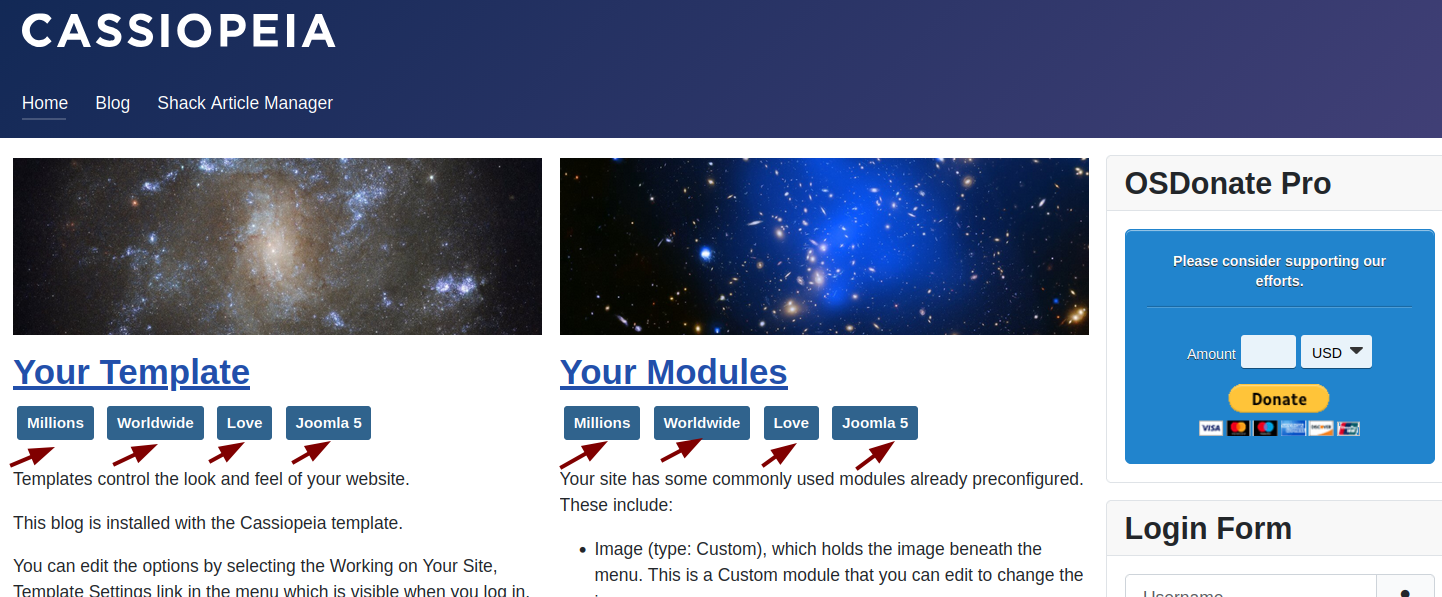
Once you start creating your Joomla tags, by default, you will see them throughout your whole site. They will be displayed on your featured articles pages:
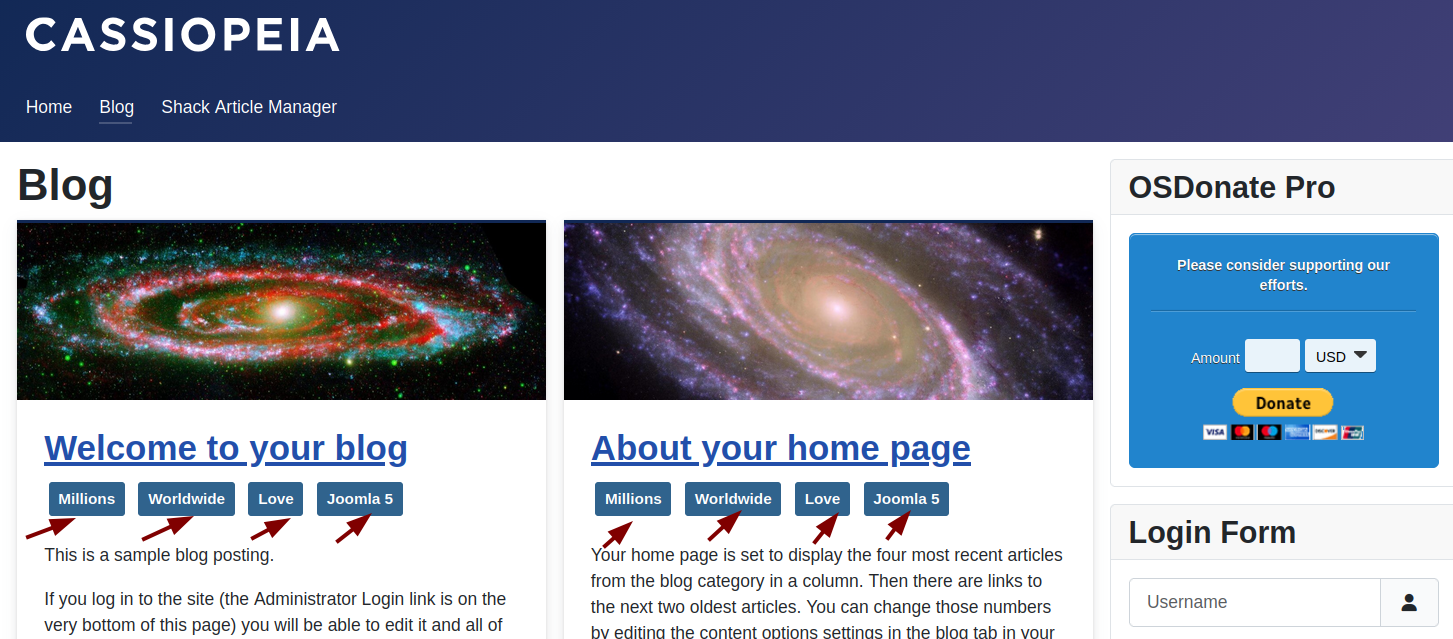
The tags will also be displayed on a category blog page:
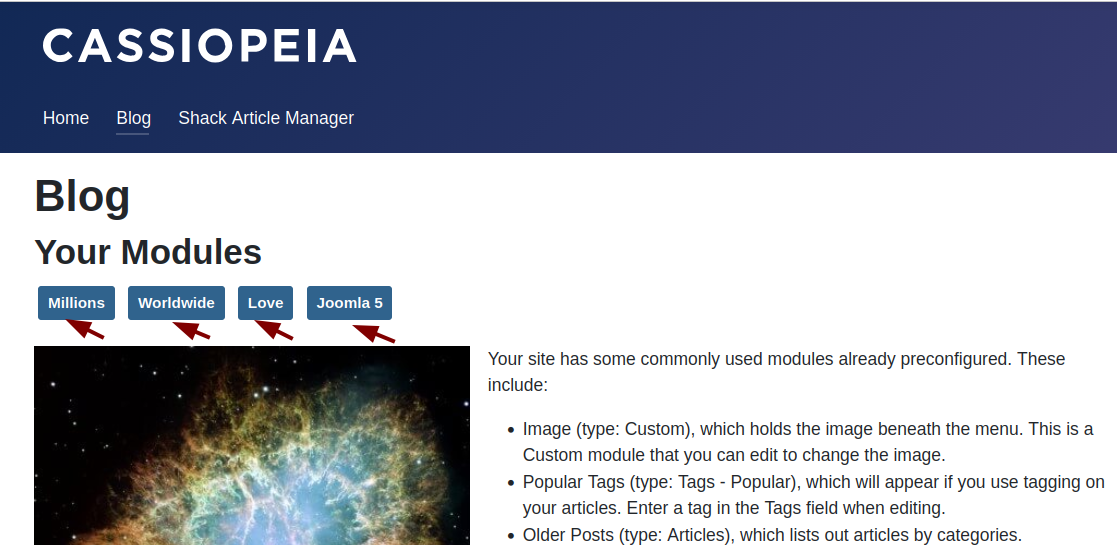
And they also will be displayed on a single article page:
To keep Joomla tags displayed only on single article pages, you need to do the following.
- Set them to be hidden for all articles on the site.
- Set them to be displayed explicitly for the required articles.
Let's get started:
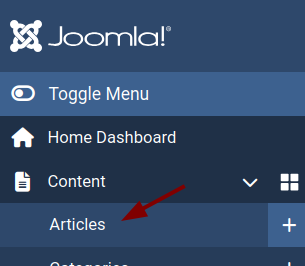
- In your Joomla admin dashboard, go to Content > Articles:
- In the top right corner of the next screen, click Options:

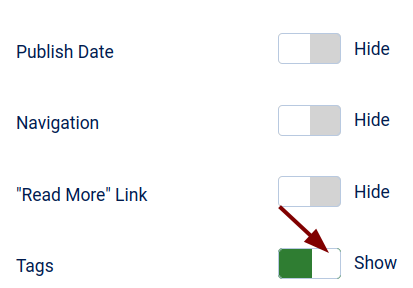
- Under the "Articles" tab, scroll down to the Tags parameter and set it to option Hide:
- Click Save & Close.
- Now open for editing a Joomla article on which you would like to display tags.
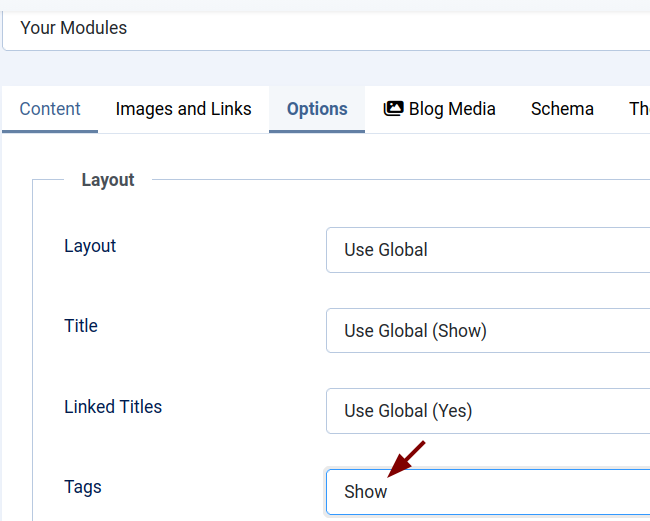
- Click the Options tab.
- Switch the Tags setting from Use Global (Hide) to Show:
- Click Save & Close.
- Repeat this step for all the required articles.
If you check your site now, you will see that it displays Joomla tags only on the pages of the articles, for which you explicitly set the Tags setting to the option Show.
What's Next?
Save $1,000's when you sign up for Joomlashack's Everything Club.
You will get your hands on our extensive range of over 20 extensions, plus legendary support!