
One of our customers asked how to import events from an external service to JCal Pro. You can achieve this as long as the external service supports exporting your calendar events in the iCal format.
In this tutorial, you will learn how to import events from Google Calendar to JCal Pro using its Import feature.
It is also possible to export calendars from JCal Pro.
Events import in JCal Pro is a two-step process:
- You export your Google Calendar .ics file and save it on your hard drive.
- You import this .ics file into your JCal Pro component.
Step #1. Export your Google calendar
- Go to your Google calendar
- Click on the Settings menu icon:

- You will see a drop-down menu. Click Settings:
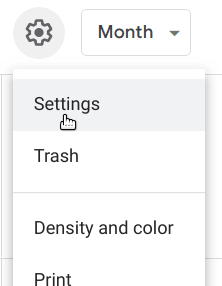
- On the left sidebar, click Import & export > Export:
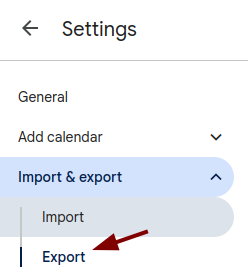
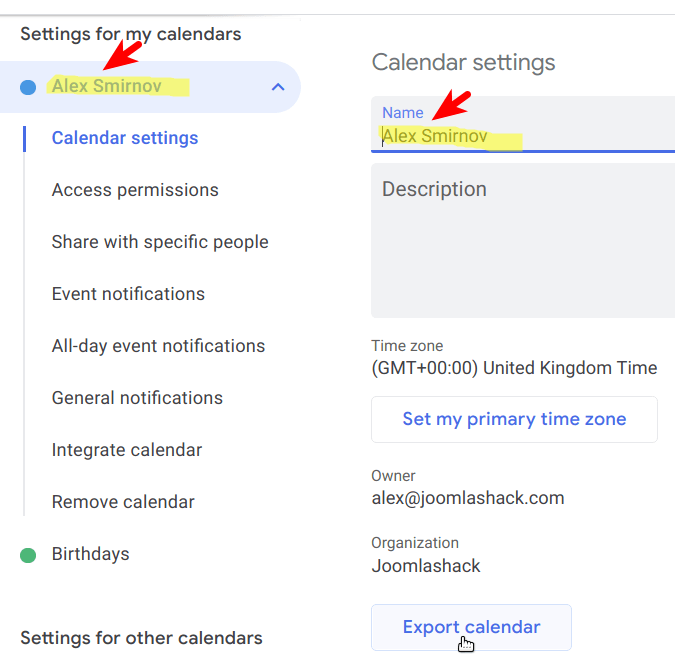
- If you have more than one Google calendar, click on the name of the calendar you wish to import to JCal Pro.
- You should now see the name of your calendar displayed. Click Export calendar and save the resulting ZIP file on your hard drive:
- Extract this file. You should now see the .ics file:
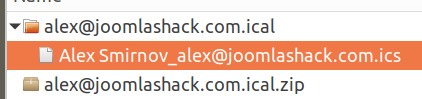
Excellent! You now have your Google Calendar .ics iCal file and are ready to proceed to the next step.
Step #2. Import your Google calendar to JCal Pro
- In your Joomla control panel, go to Components > JCal Pro > Events:
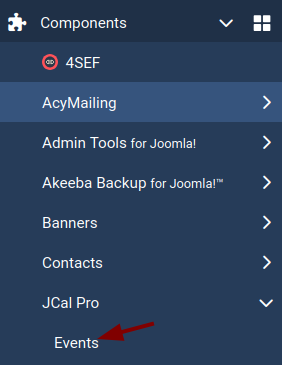
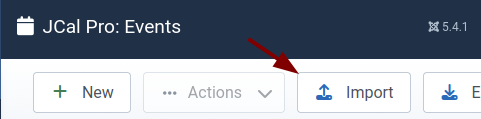
- At the top of the screen, click Import button:
- Click Browse...:
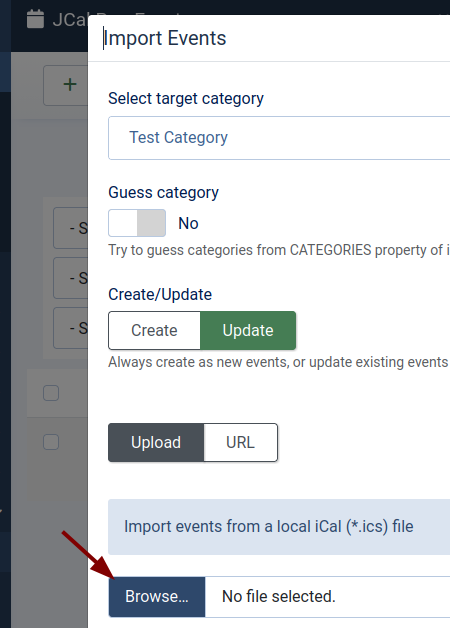
- Select the .ics file you exported in the previous step and click on it twice.
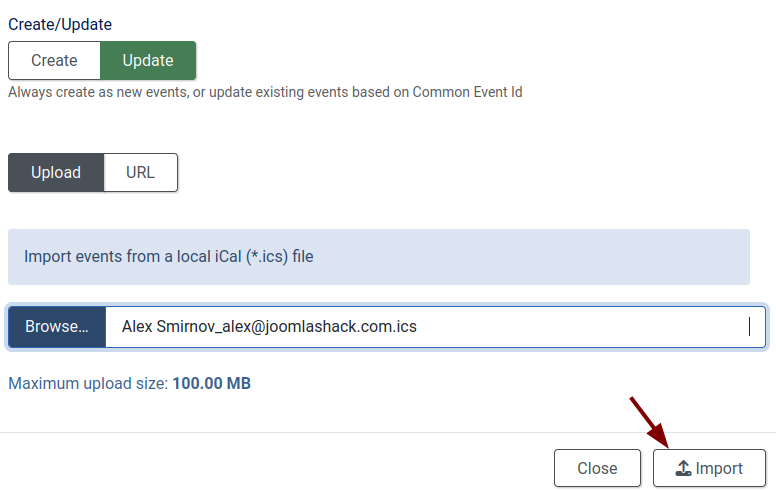
- You will see the file name displayed next to the Choose file button, as shown in the screenshot below. Click the Import button:
- You will see the "Import success" message and the imported events listed:
What's Next?
Save $1,000's when you sign up for Joomlashack's Everything Club.
You will get your hands on our extensive range of over 20 extensions, plus legendary support!